



1. Setting Up the Supplier in the System – Make sure the supplier is set up in the system (there is a separate guide for this).
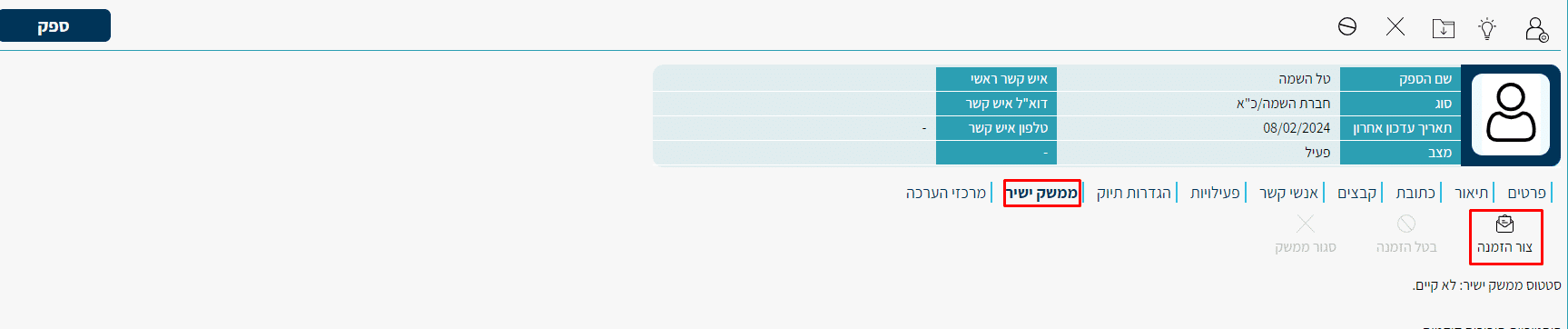
2. Sending the Invitation – Go to the supplier card, navigate to the Direct Interface column, and click “Create Invitation.”
3. Selecting a Contact/Email – Enter the contact person’s address for working with the direct interface. This person will receive the initial interface invitation and system setup details + ongoing notifications for job updates going forward.
You can select the contact if they already exist on the supplier card, or manually enter the email address.
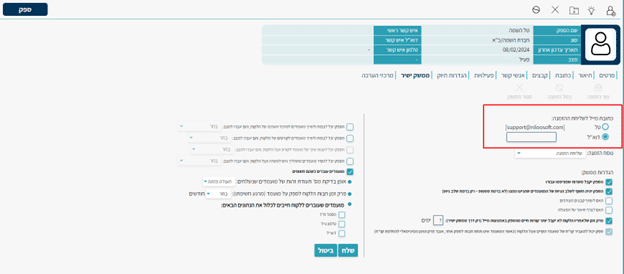
4. Interface Settings – Note that all parameters on this page cannot be changed, so perform a thorough review before sending the invitation.
First Part (right side)
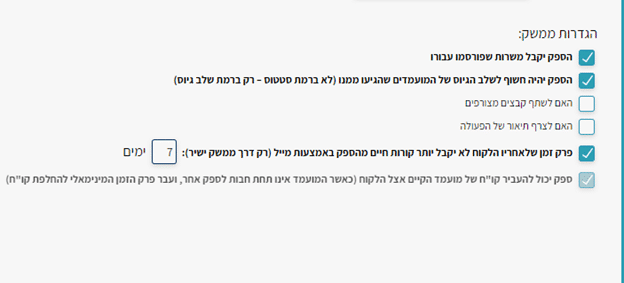
- The supplier will receive positions published for them – Once the position is published after activating the interface (explained later), it will be transferred directly to the supplier’s system — it is recommended to leave this option checked.
- The supplier will have visibility into the recruitment stage of candidates submitted by them – Once a status is updated on a candidate, the supplier will receive an update at the recruitment stage level (Rejected, Accepted, Initial, Advanced). It is recommended to leave this option checked — without this the supplier will not receive any updates on candidates at all.
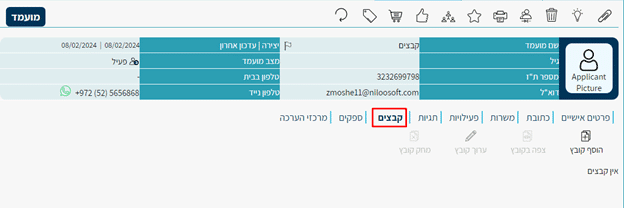
- Whether to share attached files – Allows the supplier to transfer additional files along with the candidate when transferring through the system, which will go directly into the candidate card on your end.
- Whether to include an action description – Transfers all text entered during the status update on the candidate, in the description section, to the supplier who sent them via the direct interface.
- Time period after which the client will no longer receive CVs from the supplier via email – The allotted time allows the supplier to also send CVs via email during this period. After the set time, the supplier will no longer be able to send CVs via email — only through the interface — in order to maintain consistent work exclusively through the interface.
Second Part
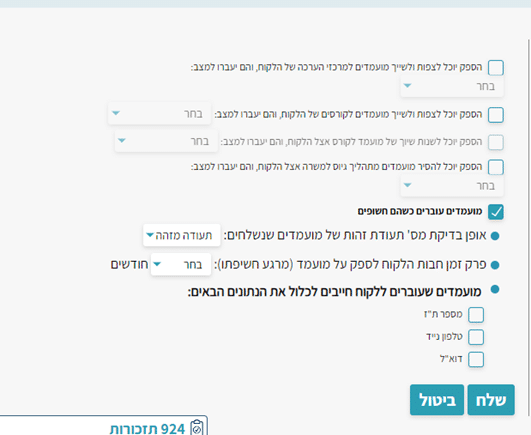
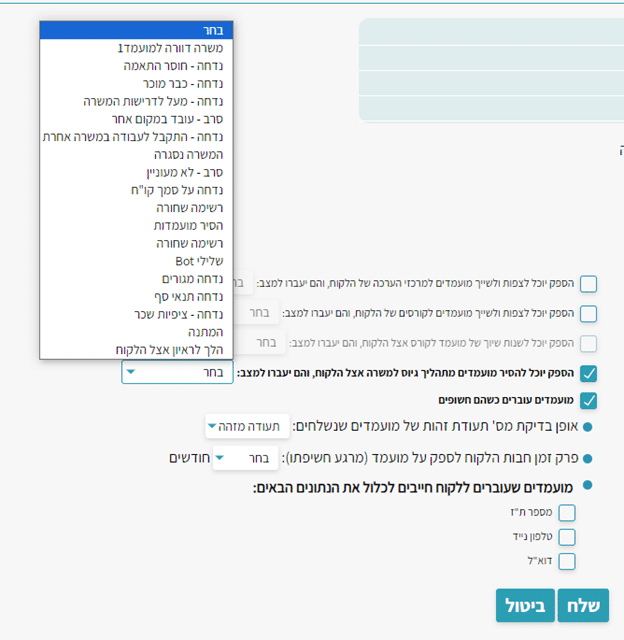
The supplier will be able to remove a candidate from the recruitment process for a position at the client – If you wish to allow the supplier to remove candidates they transferred via the interface from the specific recruitment process for the position — if so, to which status the supplier will be able to assign them (the list contains all the negative statuses that exist in your system). In other words, if you allow the supplier this option, they will be able to remove a candidate they already transferred to you from the recruitment process and move them to one of the statuses shown.
Candidates are transferred as exposed – It is always recommended to check this option, as the entire interface is based on it. Although it is possible to transfer unexposed candidates, this may cause duplicates when the candidate arrives without a unique identifier (ID number, mobile, or email) — the system cannot differentiate based on name alone.
- Method for checking candidate ID numbers when sent: ID document.
- Client liability period to the supplier for the candidate (from the moment of exposure): How long the candidate belongs to the supplier — during this time the candidate’s recruitment source will not change and another supplier cannot send the candidate via the interface. Set X months.
- Candidates transferred to the client must include the following data: Check the parameters you want to require the supplier to send along with the candidates — when the supplier tries to transfer a candidate without the checked data, a red error message will appear stating that the candidate cannot be sent without that parameter, and they will not be able to transfer the candidate until the details are updated.
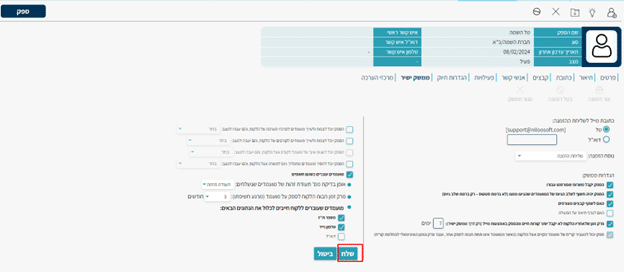
6. The invitation will move to “Pending” status — the supplier needs to set up the system and activate the interface. Until then, do not perform any actions in the interface. Wait for the invitation to move to “Active” status.
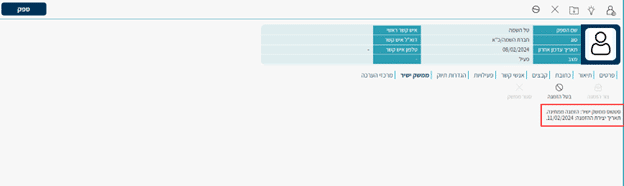
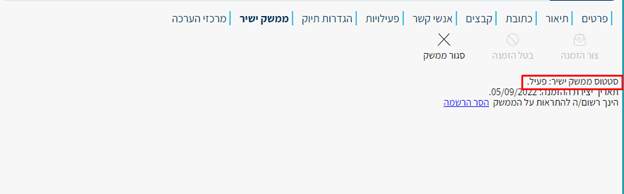
7. “Active” status — from here you can publish the position for the supplier.
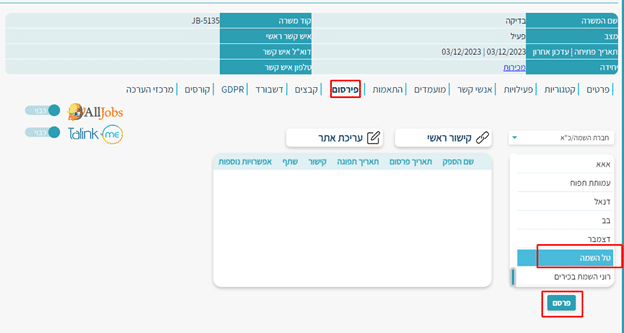
8. Publishing Positions – Go to the position you want to publish for the supplier.
Go to the Publishing column — check the supplier in the table on the right side (which displays all suppliers in the system) and click Publish.
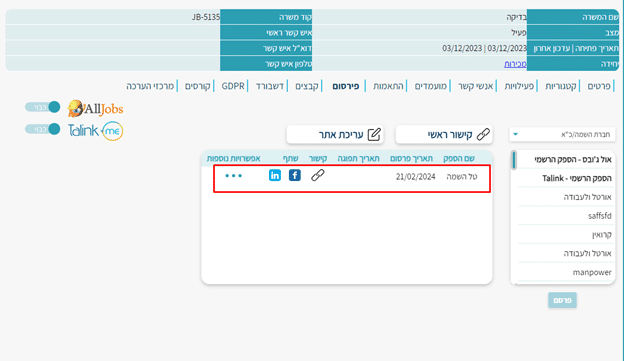
9. The position has been transferred to the supplier’s system and from there they can transfer candidates to you in the system.
10. Receiving Candidates – The supplier will create candidates in their system and perform a “familiarity check.” If the candidate is not known/does not exist in your system, they will be able to transfer the candidate to you and you will receive them directly in the system.
You can view on the position page under the candidates column — every candidate who arrives via the direct interface will be classified with the initial default status “Supplier submitted CV for position.”
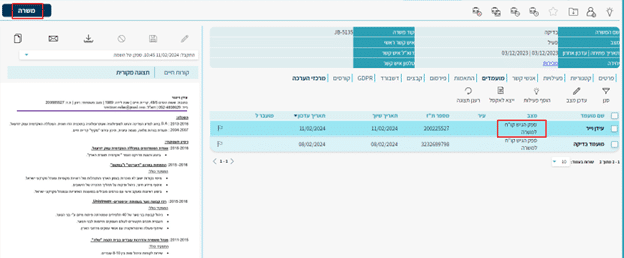
or through the candidate card
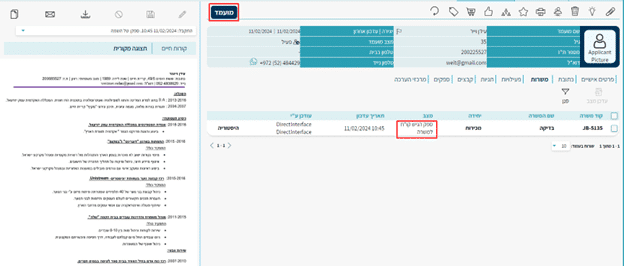
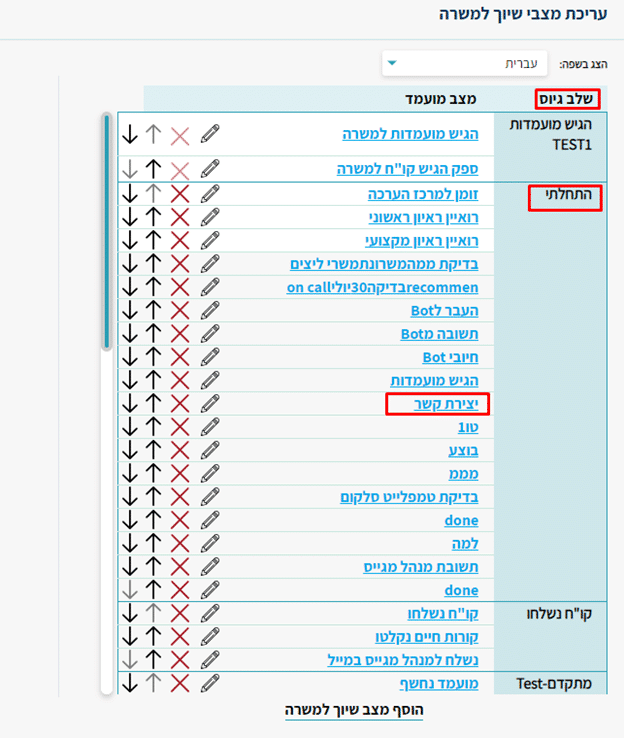
In the image below you can see, for example, how each recruitment stage (right column) has statuses/candidate states associated with it that are relevant to the recruitment characteristics of a given organization. These are called “position assignment states” and can be edited according to your organization’s recruitment process and stages.
12. Ongoing Operations – After filling the position or when you need to take it down from publication, perform 2 actions:
- Close the position so the supplier receives an update and can no longer transfer candidates to this position.
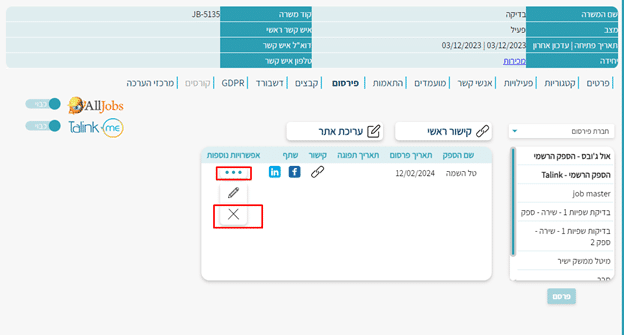
- Unpublish the position through the 3-dot button and click X.
- Any other action on the position, such as updating details or pausing the position — the supplier will receive an update via email and in the system but will still be able to work on the position and try to transfer candidates.