



Advanced Resume Search
Now that we’ve learned how to use the Candidate Hunter and search using keywords, we can move on to the next level – Advanced Search. The advanced search allows you to refine results even further using additional filters based on candidates’ resume content.
With these options you can:
- Define logical inclusion and exclusion rules
- Filter by location
- Use AI (CV Analysis) to analyze years of experience
- Sort search results by preference
1. Opening the Hunter and Adding Search Fields
First, open the Candidate Hunter. In the previous article we learned to use the basic fields:
- Experience
- Education
- Notes

Screen description: The Candidate Hunter screen with search fields.
To refine your search further, you can add additional search fields – such as Education and Notes – by clicking the + button.
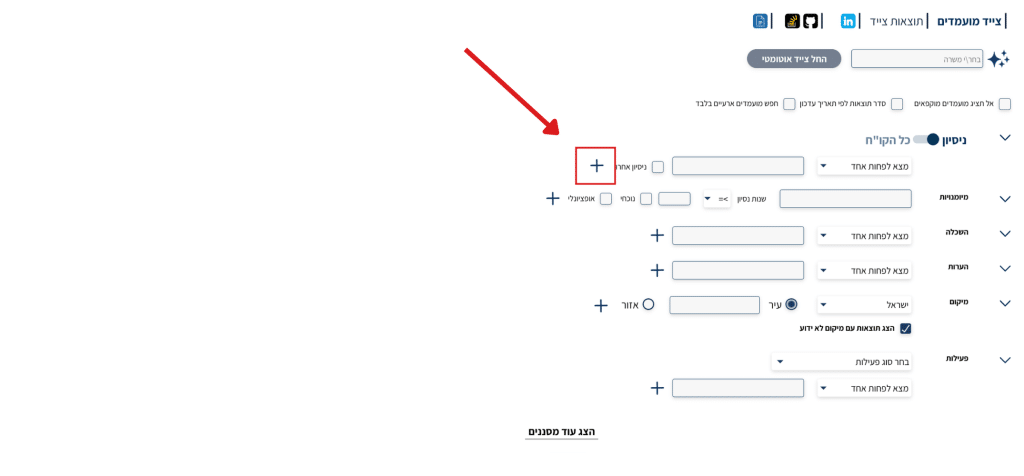
Screen description: The + button at the bottom of the search fields – clicking it will open an additional search row.
2. Logical Search Rules
Next to each search field you can choose the desired search rule:
- Find At Least One – searches for candidates who have at least one of the words entered in that row.
- Find All – searches for candidates whose resumes contain all the words entered in that row.
- Optional – the word is not required, but its presence increases the candidate’s relevance score.
- Must Not Contain – filters out candidates who have any of the entered words.
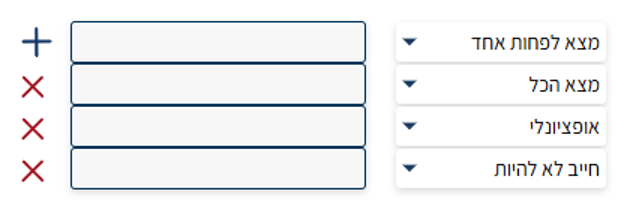
Screen description: Selecting a search rule next to each field – Find At Least One / Find All / Optional / Must Not Contain.
Important: note the “AND” rule – when you add multiple filter rows, all conditions must be met together for a candidate to appear in the results.
3. AI-Based Experience Analysis – CV Analysis
The system includes an advanced feature called CV Analysis, powered by artificial intelligence. This capability allows the system to read and analyze resumes similarly to a human – not just search for words.
With this tool you can search for:
- Candidates with at least 5 years of experience in a specific field
- Candidates whose most recent position matches your search
- Candidates who are currently employed in a specific role

Screen description: “Last Experience” option in the search row – marks that the search will apply only to the current/most recent experience.
In addition, you can search for skills together with years of experience:
- Enter the skill in the skills field
- Select it from the dropdown
- Set the required years of experience
- Click + to add the filter
You can also specify that the skill should be from the candidate’s current position only.

Screen description: Skills search field with years of experience setting and “Current Experience” option.
4. Filtering by City or Region
You can also filter by candidate location. By default the filter is by city, but you can switch it to region to search for candidates from a certain area rather than a specific city. There is also the option “Show results with unknown location” to include candidates who did not specify their location.

Screen description: Location filter field – choosing city / region and the option to show unknown location.
5. Sorting Search Results
On the main search screen there are several options for sorting results:
Do Not Show Frozen Candidates – hides candidates with a negative status who have been marked as frozen in the system.

Screen description: “Do Not Show Frozen Candidates” checkbox.
Search Temporary Candidates Only – shows only temporary candidates in the system – for example those who submitted resumes in an unsupported format or without enough personal details.
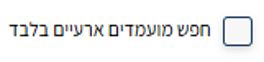
Screen description: “Search Temporary Candidates Only” checkbox.
Sort Results by Update Date – displays candidates from the most recently updated to the least recently updated.

Screen description: “Sort Results by Update Date” checkbox.
Summary
In this article we learned how to use the advanced search tools of the Candidate Hunter to refine search results. We saw how to use:
- Logical rules like “Find At Least One” and “Must Not Contain”
- AI-based CV Analysis tool to search by years of experience and current position
- Location filtering by city or region
- Results sorting options