How to Use the Additional Filters in the Candidate Hunter in Hunter AI

What Are the Additional Filters in the Hunter?

Now that we’ve learned how to search for candidates using text from their resumes (such as experience, education, and more), it’s time to get acquainted with the Additional Filters. These filters allow further candidate filtering, but this time based on data that exists in the HunterAI system itself – not from the resume text.

1. Displaying the Additional Filters

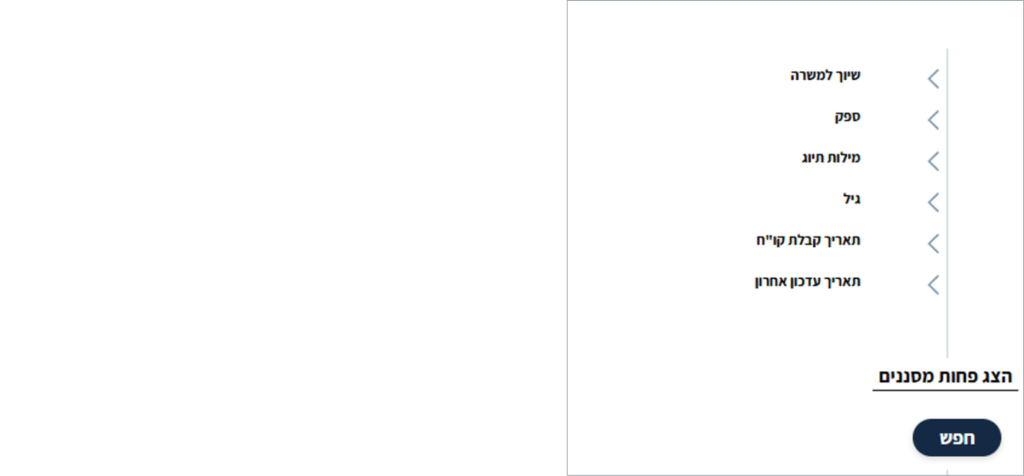
First, open the Candidate Hunter. Then click the “Show More Filters” button, which appears above the Search button.

Screen description: The “Show More Filters” button for the additional filters section in the Candidate Hunter.

After clicking, the additional filters panel will open on the side of the screen.

Screen description: The Hunter screen after clicking “Show More Filters” — the additional filters panel opens on the side of the screen.

2. Job Assignment and Assignment Status

One of the most important filters allows you to filter candidates by the jobs they applied to and their status in the recruitment process.

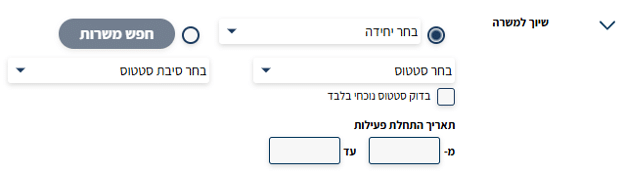
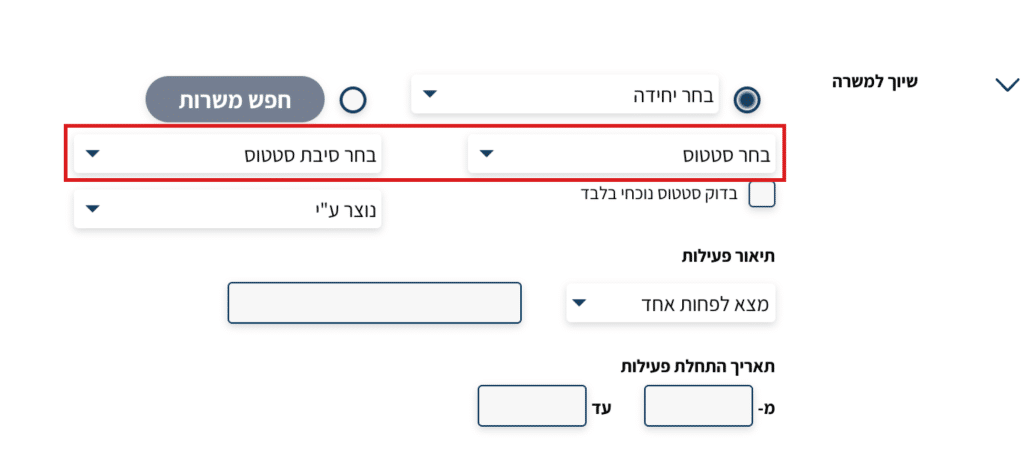
Screen description: Job assignment area in the additional filters panel — fields for selecting unit, job, status, and status reason.

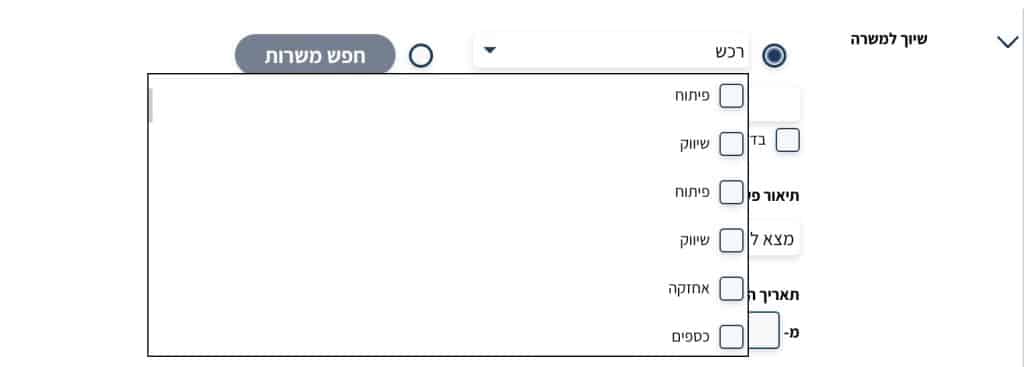
Assignment to Unit / Client

By clicking “Select Unit” you can search for candidates who applied to jobs in a specific unit or client.

Screen description: “Select Unit” field to filter candidates who applied to jobs in a specific unit or client.

Job Assignment

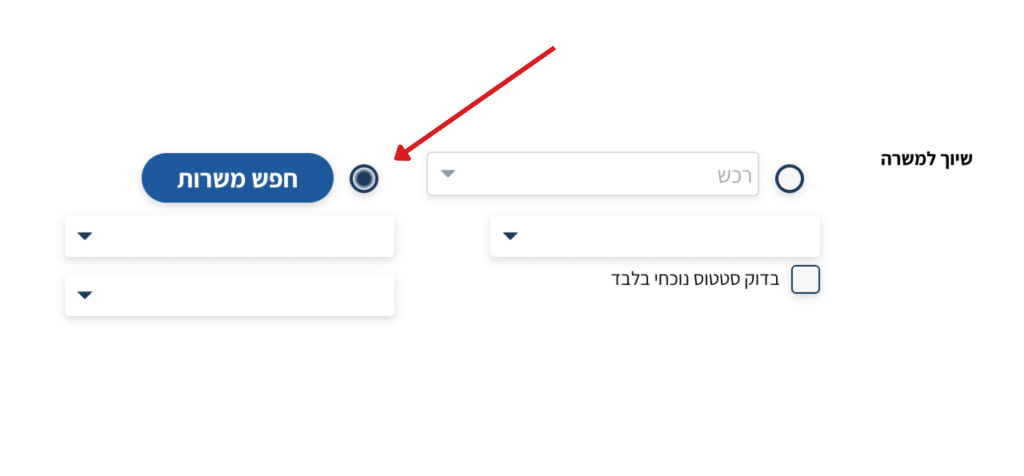
By clicking “Search Jobs” you can select specific job openings.

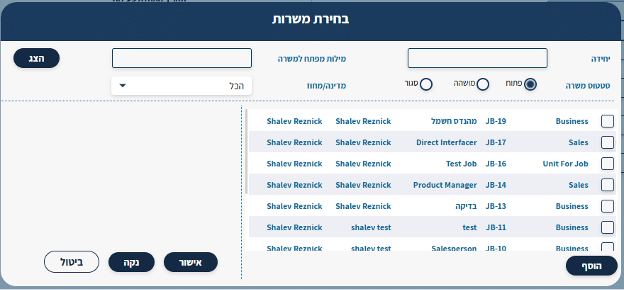
Screen description: “Search Jobs” field — clicking opens a job selection window for specific job filtering.

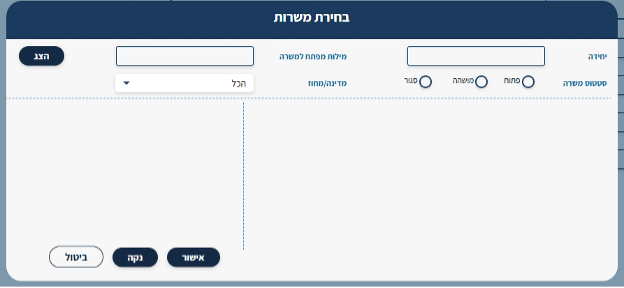
In the job selection panel that opens you can filter by:

  • Jobs of a specific unit or client
  • Jobs with a specific status (such as open or closed)

Screen description: “Select Jobs” window for choosing a specific job for filtering — includes filter options by unit, job keywords, status, and country.

After selecting the job:

  • Check the desired job
  • Click “Add” and then “Confirm”

Screen description: Job selection results — the list of selected jobs appears in the assignment field.

For the full article on assigning candidates to jobs and managing assignments, see: How to Assign a Candidate to a Job in Hunter AI

Job Assignment Status

In this area you can filter candidates by their status in the recruitment process.

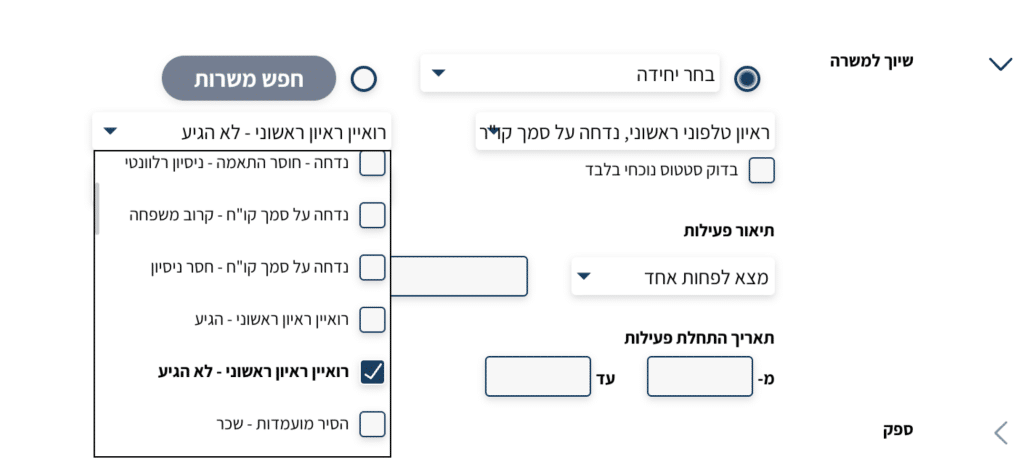
Screen description: “Select Status” dropdown to filter by recruitment stage — for example: phone interview, in-person interview; and “Select Status Reason” dropdown to filter by status reason, for example: rejected – poor fit – location.

From the dropdowns:

  • Select Status Reason
  • Select Status

Choose specific assignment statuses you want to see in the results. For example: candidates who had a phone interview in the past.

Select Status

Screen description: Status filter options.

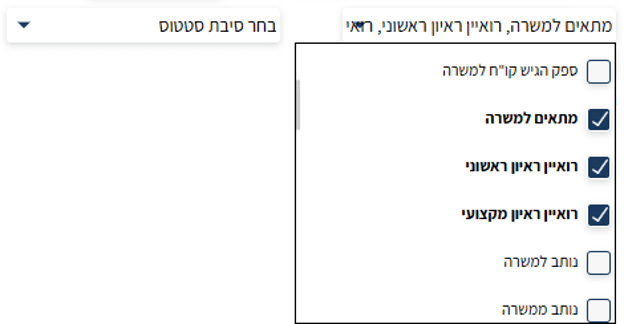
Select Status Reason

Select a specific status reason for filtering — for example: Rejected – Poor Fit, Rejected – Location.

Screen description: “Select Status Reason” dropdown with available options.

Additional options:

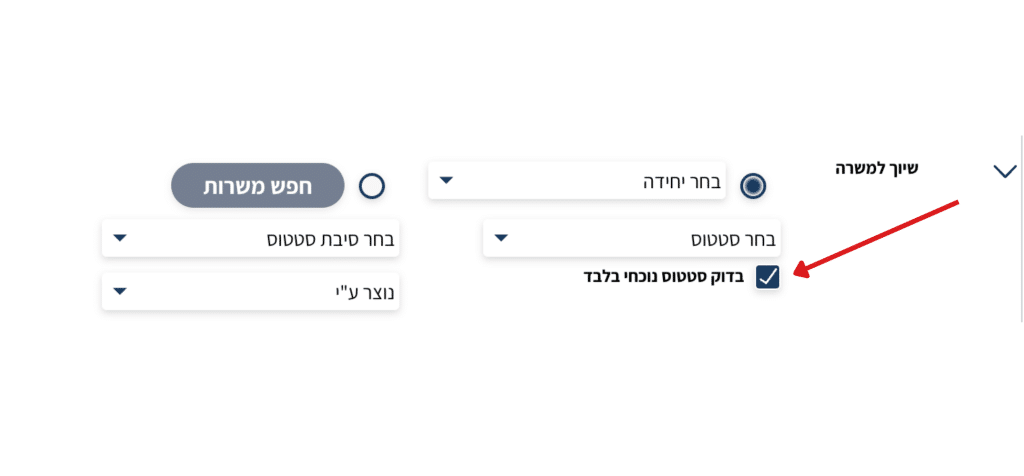
Check Current Status Only – shows only candidates who are currently in the selected status in one of the jobs.

Screen description: “Check Current Status Only” option — shows only candidates currently in the selected status in one of the jobs.

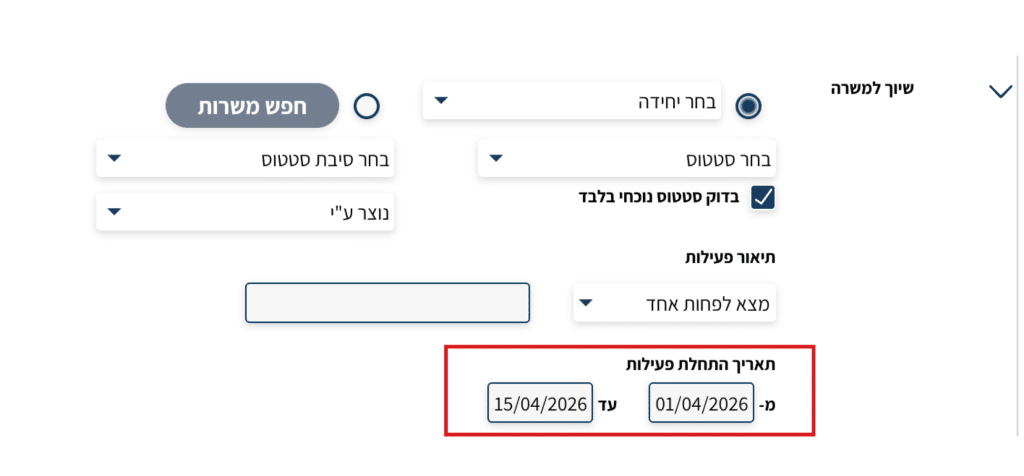
Activity Start Date – shows candidates who reached this status within a specific date range.

Screen description: “Activity Start Date” option — allows displaying candidates who reached the selected status within a specific date range.

3. Filtering by Supplier

A supplier is any recruitment source from which candidates come — for example: a placement company, a jobs website, LinkedIn. Suppliers are defined in advance in the system settings.

By clicking the arrow in the “Supplier” row, you can filter candidates by the source they came from. For example:

  • Placement company
  • Social network
  • Other external recruitment source

You can also choose a specific supplier type and display all candidates who came through suppliers of that type.

Screen description: “Supplier” row in the filters panel — clicking the arrow opens a list of suppliers and supplier types for selection.

4. Filtering by Tagwords

Tagwords are free-form tags that can be attached to candidate cards — for example: “French speaker,” “immediately available,” “senior talent.” Full guide to managing tags →

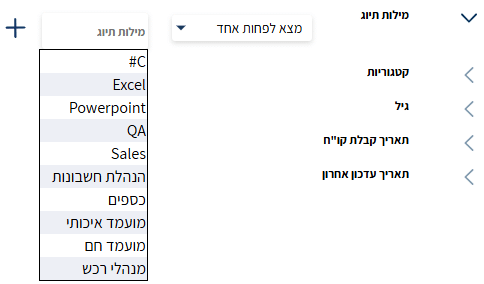
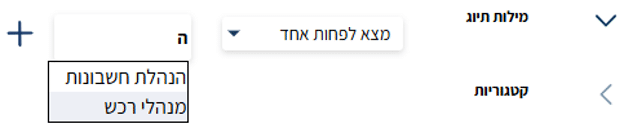
You can also filter candidates by the Tagwords you’ve added to them in the system. By clicking “Tagwords” start typing the beginning of the word, and the system will suggest existing tags. For example:

  • Tags for special talent
  • Language tags
  • Or any other tag added to candidate cards

Screen description: “Tagwords” field — typing the beginning of a word shows existing system tags for auto-completion.

Screen description: Displaying existing tags — the system suggests tags defined in candidate cards for selection.

Screen description: Tag search logic — option to use “Find At Least One” rule to filter out candidates with a specific tag.

5. Filtering by Categories and Age

Categories

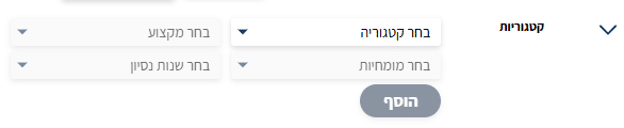
Under “Select Category” the categories defined in the system will appear. Choose from:

  • Sub-category
  • Area of expertise
  • Years of experience

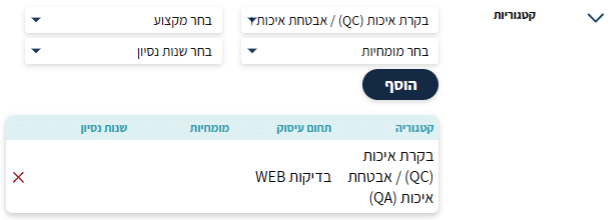
This data is entered manually in candidate cards. After selecting, click “Add”.

Screen description: “Select Category” field — choosing area of expertise, sub-category, or years of experience defined in candidate cards.

Screen description: Selected category appears in the list — after selecting, click “Add” to confirm.

Age

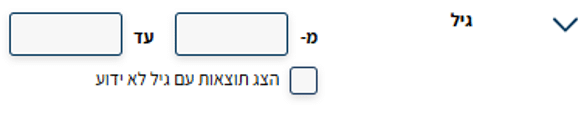
By clicking “Age” you can filter candidates by age range. There is also the option: “Show results with unknown age” – this option will also display candidates who did not specify their age in the system.

Screen description: “Age” field for filtering by age range — includes option to show candidates whose age is unknown in the system.

6. Filtering by Dates

The last two filters allow filtering by different dates.

Resume Received Date

Filter by the date the candidate’s resume was first received or entered into the system.

Screen description: Filter field by resume received date — selecting a date range from the initial date entered into the system.

Last Update Date

Filter by the last date the candidate card was updated. The update can be for example:

  • Status change
  • Details update
  • Additional resume uploaded

After finishing setting all desired filters, click the “Search” button to get the results.

Screen description: Filter field by last update date — shows candidates whose card was updated within a selected date range.

Summary

In this article we got acquainted with the Additional Filters in the Candidate Hunter, and learned how to filter candidates based on data existing in the HunterAI system itself. Among the filters you can use:

  • Job and unit assignment
  • Statuses in the recruitment process
  • Suppliers and recruitment sources
  • Tagwords
  • Categories and age
  • Date filters
Picture of Niloosoft Ltd.            Ask ChatGPT

Niloosoft Ltd. Ask ChatGPT

Niloosoft is a leading provider of an advanced system for managing and tracking the employee recruitment and human resources process.


Niloosoft offers its clients solutions in the fields of human resources management, recruitment process management, and customer relationship management (CRM). Our solutions are suitable for freelancers as well as HR departments in companies that recruit personnel for their own needs and manage the recruitment process with the organization’s managers through a single platform.
נילוסופט מובילה את מהפכת גיוס העובדים עם המערכת המתקדמת בעולם לניהול תהליך גיוס עובדים ומשאבי אנוש

השאירו פרטים ונדבר