


Option 1 – Convert a Candidate to an Employee with One Click
If the employee you want to onboard already appears as a candidate in the system, you can convert them to an employee with one click:
Go to the relevant candidate profile > click the “Convert to Employee“ button in the quick action buttons displayed at the top of the candidate profile.
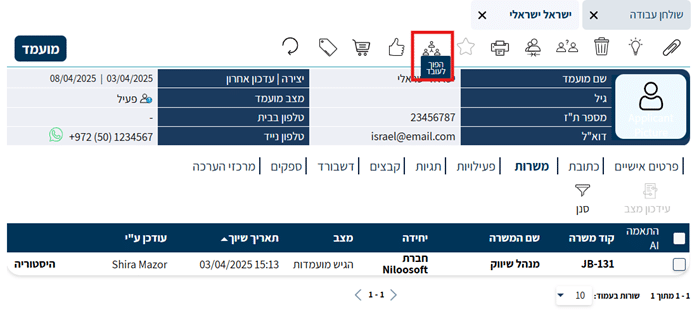
The following window will then open, where you will need to fill in details about the employee:
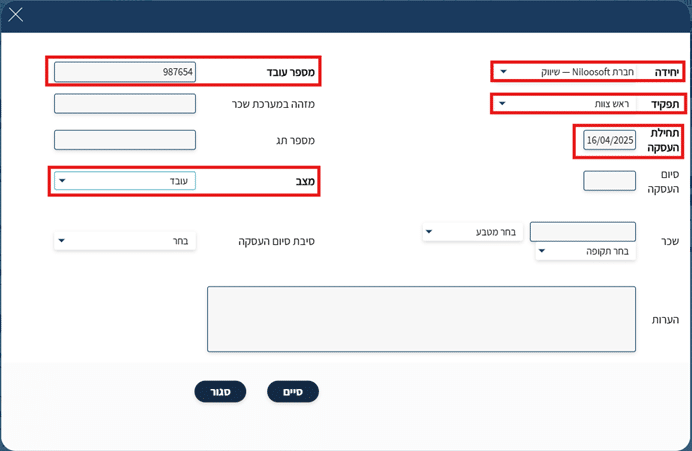
Note: All bolded fields are required — Unit, Role, Employment Start Date, Employee ID, and Status.
After filling in the fields, an employee profile will be automatically created and all data from the candidate profile will be transferred to the employee profile.
Option 2 – Create a New Employee
If the employee does not exist as a candidate in the system, you can create them from scratch:
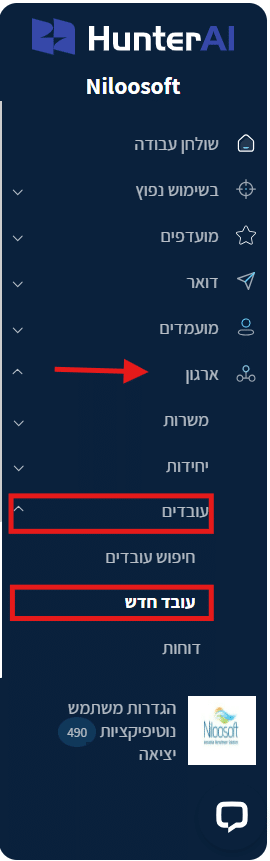
1. Go to the main menu > Organization > Employees > New Employee
2. In the screen that opens, you can upload a resume file — the system will analyze the file and automatically fill in the available fields.
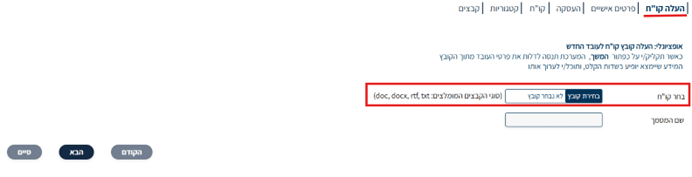
If you don’t have a file to upload, click the “Next” button and enter the employee’s personal details manually.
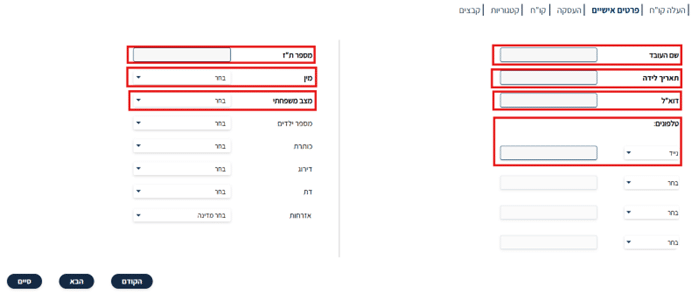
The employee’s personal details include required fields that must be filled in:
Required fields are: Full Name, Date of Birth, Phone, Email, ID Number, Gender, Marital Status, Employment Status, Employee ID, Employment Start Date, Unit Assignment.
You can also enter additional details:
Salary: Amount, Currency, Salary Type (Monthly/Weekly/Hourly)
Relevant Files: Contracts, certificates, supporting documents
Equipment: Track equipment issued to the employee (computer, phone, vehicle, etc.)
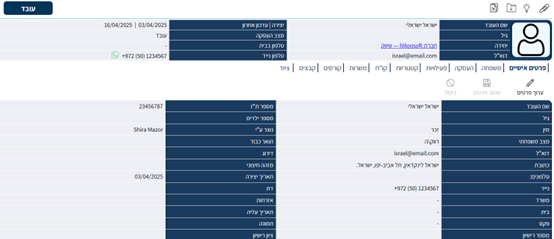
After creating the employee, you will be automatically taken to the new employee profile, where the system will display the employee with all the information entered.
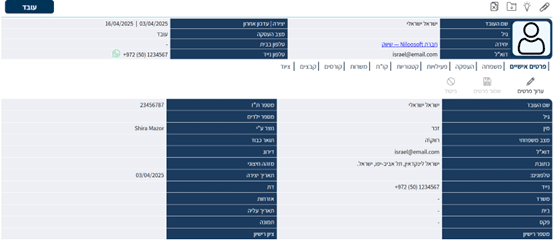
You can edit the employee profile and add/change details by clicking the “Edit Details” button
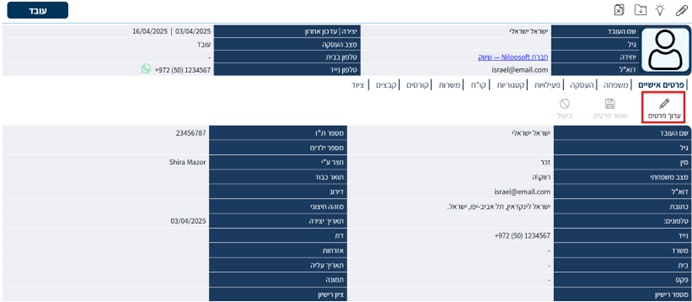
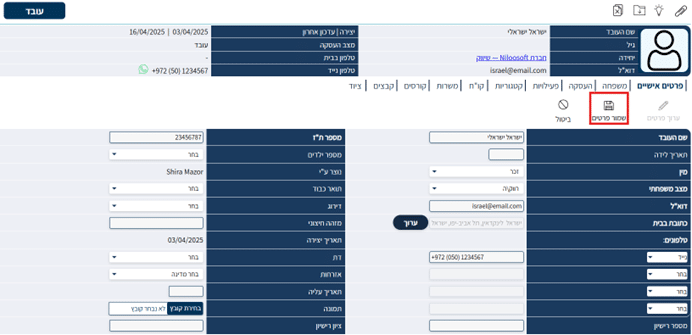
After making your changes, click the “Save Details” button to save.
If you don’t want to save the changes, click the “Cancel” button
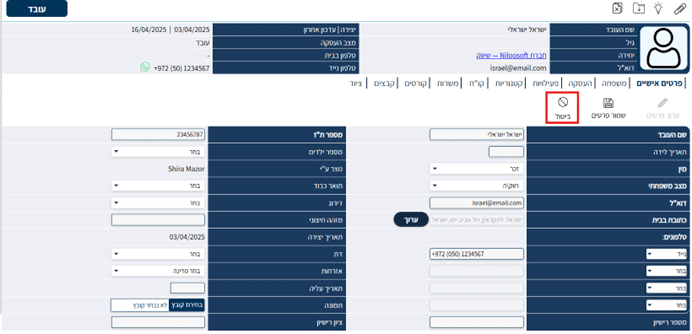
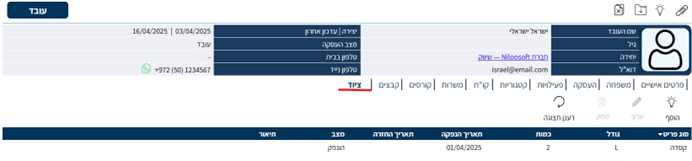
In the employee profile, you can manage all organizational history related to that employee according to the tabs in the profile:
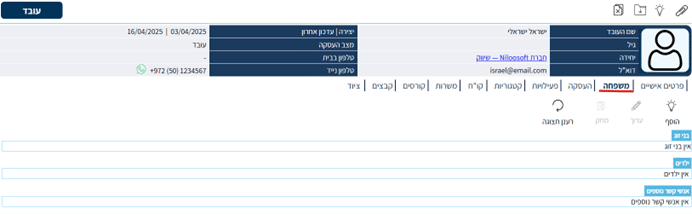
- Family – You can add the employee’s contacts to the system. An article explaining how to add family members to the employee profile will be published soon.
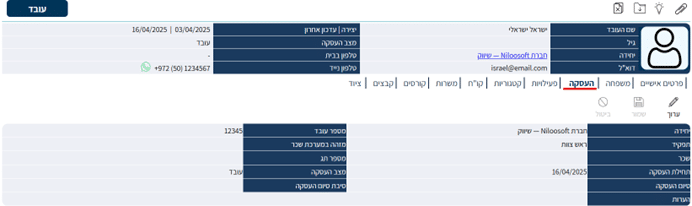
- Employment – All employment terms for the employee, including salary, employee ID, etc.
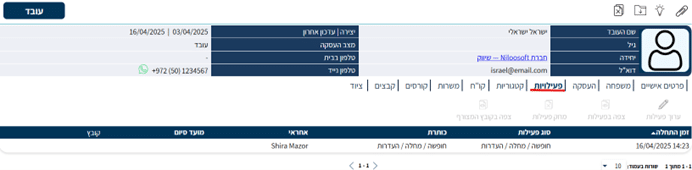
- Activities – Log vacation days, sick leave, early departures, events, or any scenario you want to document. An article explaining how to add activities to the employee profile will be published soon.
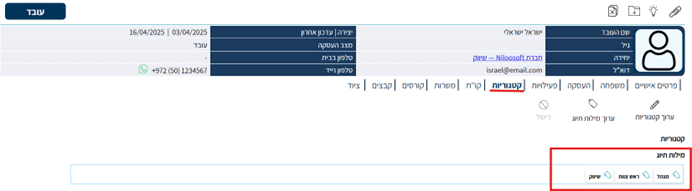
- Categories – You can add categories/tags to which the employee belongs, allowing you to manage employees more conveniently. An article explaining how to add tags will be published soon.
- Resume – The employee’s resume uploaded to the system.
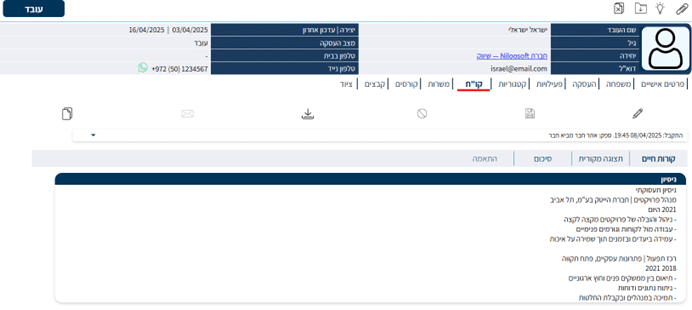
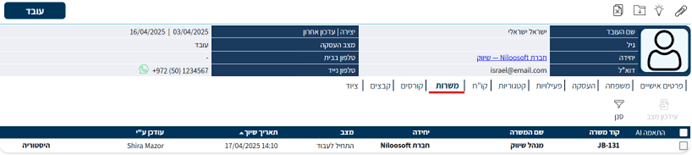
- Positions – History of roles the employee held within the organization.
- Courses – Track training and certifications the employee completed as part of their organizational training.
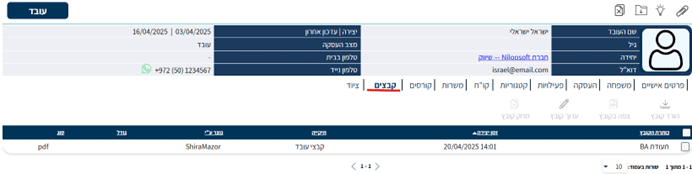
- Files – All employee files you want to save can be uploaded to the system [employment contract, certificates, tax forms, etc.]. To learn how to upload files to the system, click here — coming soon.
- Equipment – You can document all equipment provided to the employee as part of their work, such as a computer, mouse, etc. To learn how to add equipment to the employee profile, click here — coming soon.