


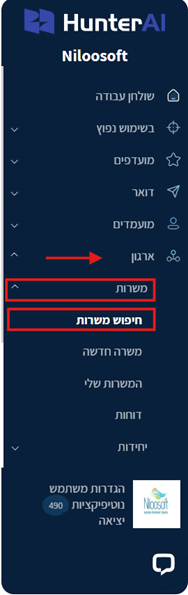
There are two ways to reach the position search page, depending on which version of the recruitment system you have:
- Organizations version:
Main menu on the desktop> Organization> Position> Search Position
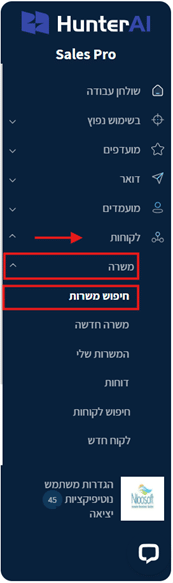
- Staffing Agency version:
Main menu on the desktop < Clients> Position> Search Positions
After entering the search page, you can perform a focused search by parameters or simply display all existing positions in the system.
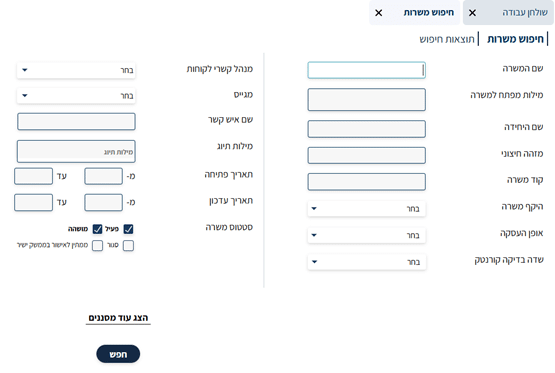
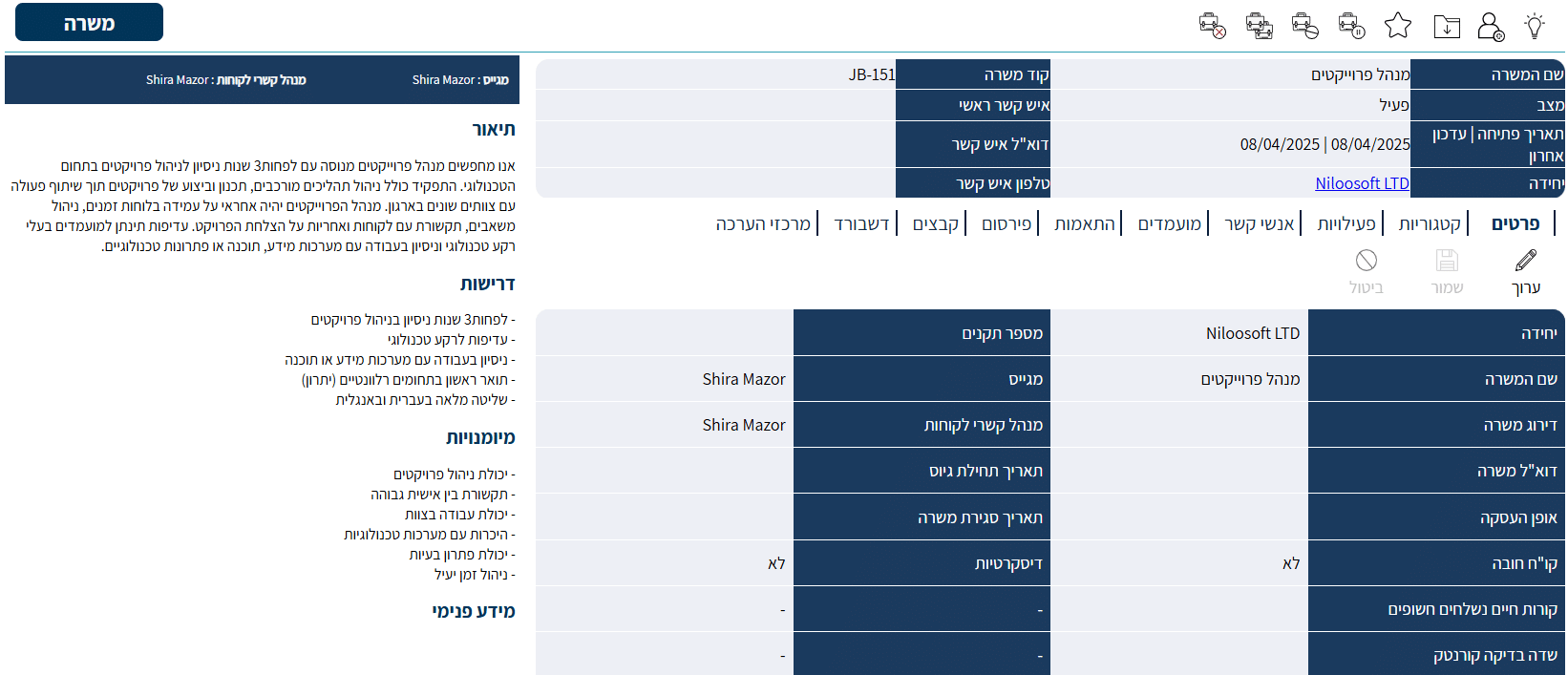
Every position has a unique identification code that the system automatically assigns to each position [like an ID for the position]. You can find the code on the position card itself.
Enter the code in the “Position Code” field, click “Search” and the position will appear immediately.
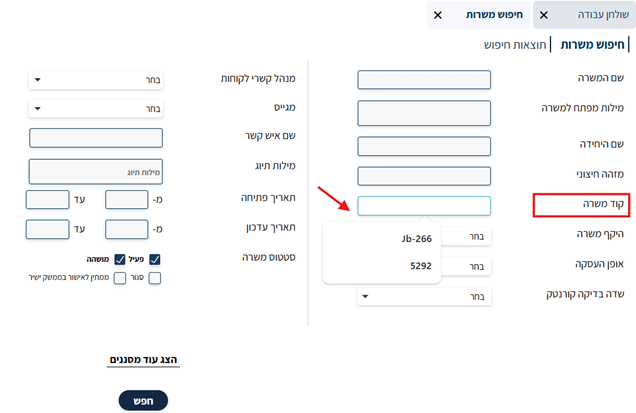
Then, clicking on the position row
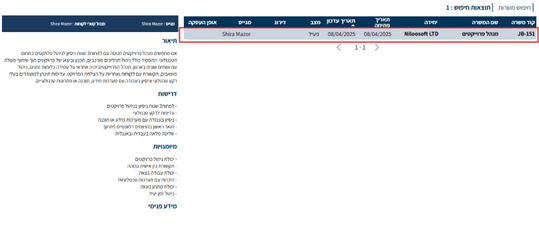
will take you directly to the position card.
The recruitment system includes a variety of advanced filtering options:
- Position Name – Enter the position name, but note that there may be positions with similar names.
- Position Keywords – You can search for a general word such as “manager” and the system will display all positions in which that word appears.
- Unit Name / Client Name – The organizational unit / client under which the position is located.
- Position Scope – Full-time / Part-time / 25% and similar.
- Employment Type – For example: direct employment or through a contractor company.
- Recruiter – Select the recruiter responsible for the position from the user list.
- Account Manager – If there are multiple contacts, you can filter by name from the user list.
- Tag Words – When creating a position in the system, you can add tag words for filtering purposes, allowing you to find all positions tagged with those assigned tags.
- Position Opening Date – Filter by date range to see only positions that were opened at a specific time.
💡 If you leave the “To Date” field empty – the system will display positions up to the current date (inclusive). - Update Date – Filter by the date on which positions were updated within a specific date range.
- Position Status – You can select statuses such as:
- Active
- Closed
- Suspended
Selecting one or more statuses will display only matching positions.
- Empty Search – If you don’t enter any filters and click “Search”, you will see all positions in the system.
Beyond the basic filters displayed by default on the search screen, the system allows you to expand the filtering range using additional filters.
These filters are designed to give you broader and more precise control to search for positions by more specific parameters such as: position rating, country, contact phone number, and more.
To open the advanced filters, click the “Show More Filters” button – the button is located below the regular search fields.
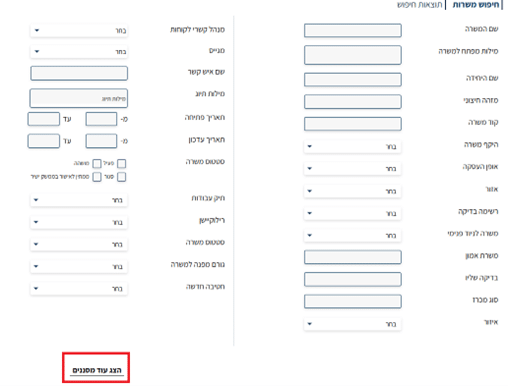
By clicking on it, an additional view will open with advanced filter fields that don’t appear by default.
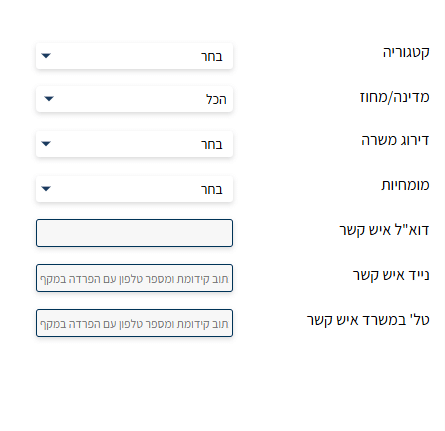
- Category – Allows you to filter by the position’s field of activity (for example: marketing, technology, customer service, and more).
- Country/State – You can select a country and then a state within that country, for filtering by geographic location.
- Position Rating – Allows you to filter positions by the rating defined in the system, for example by urgency or internal priority.
- Expertise – Filters by the area of specialization or experience required for the role.
- Contact Email – Allows you to enter a contact’s email address and find positions where a contact with that address is listed.
- Contact Mobile – You can enter a mobile phone number to locate positions linked to a contact with that number.
- Contact Office Phone – Filter by the landline phone number of a relevant contact.
Please note: Each filter you select is combined with the other filters – meaning the search results will include only positions that meet all the criteria you have filtered. Using filters wisely will lead to more accurate and efficient results.
Important tip for organizations working with staffing agencies through a direct interface in the system
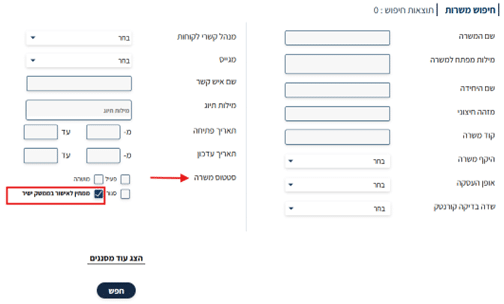
If you have granted permission to staffing agencies to send candidates through the direct interface of the recruitment software, but you are not seeing candidates – the position may still be waiting for approval from the external company.
By searching by position status “Pending Approval in Direct Interface” you can identify positions that require intervention and advance the recruitment process.