

How to Link a Candidate to a Job in the Hunter AI Recruitment System

How to Link a Candidate to a Job in the Hunter AI Recruitment System

In the Hunter AI recruitment system, linking a candidate to a job is a key step that enables precise management of the recruitment process.
Each job is linked to a candidate through a status that represents the stage they are at, from the initial stage through to acceptance or rejection.
Proper linking enables continuous tracking, documentation, and updating of each candidate’s progress against every relevant job.
To link a candidate to the desired job, make sure the job has been set up in the system and the relevant candidate card exists.

1. Accessing the Candidate Card

To link a candidate to a job, first go to the candidate card.

Once you’re in the candidate card, click the Link to Job button in the toolbar.
The linking screen will open — click the three-dot icon highlighted in red.
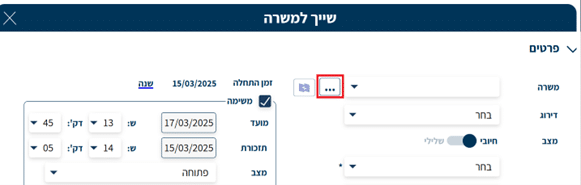
In the job linking screen, you can select the desired job in several ways:

  • Click the three-dot icon to open the job search window, where you can filter by parameters, display all jobs, or select from the list.
  • Type the job code directly into the dedicated field — this saves you from opening the search window and links you directly to the specific job.
Pro Tip — Use AI to Check Whether the Candidate Is a Good Fit for the Job

Using the AI button (the icon next to the three dots highlighted in red) –

The linking screen includes a dedicated AI button — click it to get data on how well the candidate matches the selected job, based on the criteria and requirements defined in the job compared to the candidate’s personal and professional details.
This lets you make a smart, accurate comparison and identify the best-fit candidates — without relying solely on manual searching.

2. Selecting a Job to Link

The job search window will now appear:

  • You can filter by various parameters.
  • You can also type the job name in the search box to get an exact match.
  • Clicking “Show” will display all existing jobs.

Select the desired job and click “Add” (you can choose more than one job to link the candidate to).

The job will appear on the left — click “Confirm” to complete the linking.

3. Updating the Candidate's Status in the Job

After selecting the job, the match will be saved in the candidate card.
At this stage, select the linking status — positive or negative — depending on the candidate’s current stage:
Positive -> The candidate continues in the process. Negative -> The candidate is disqualified from the process.

4. Setting a Message Template for the Status (Optional)

The system lets you set up custom email templates for each status, so when the match is updated, a pre-written message is automatically sent to the candidate.
Please note:

  • If a template is configured, the “Send Message to Candidate” field will appear as part of the linking process.
  • You can choose whether or not to send the message.
  • Make sure the field is not empty — otherwise the email will not be sent.

For more information on creating status templates, see the article:
🔗 How to Add an Email Template to a Status in the Recruitment System

5. Completing the Linking Process

Once the linking is complete, the match will be updated in the candidate card, including the job name, the selected status, and the reason recorded (for example: “No match” for the java developer position).
The system also displays the details of the user who made the update, for documentation and oversight purposes.
If a message was sent to the candidate (email), you can view it by clicking the envelope icon that appears next to the match in the candidate card.


Pro Tips — Additional Actions Related to Linking a Candidate to a Job

When linking a candidate to a job, you may also want to perform the following actions (each has its own dedicated guide):

Adding an Interview Summary

Write a manual summary or attach an existing document recording the key points of the interview with the candidate, for documentation and future reference.

Managing Automatic Tasks

The system automatically generates tasks based on the selected status, such as reminders, management tasks, or advancing stages in the process.

You can view the tasks on your desktop and update or close them as needed.

Sending a Resume to the Recruiter or Client

You can choose which version of the resume to share — with or without identifying details, according to the organization’s preferences.

Editing the Resume in the Placement Agency’s Template

Before sending to the client, you can edit and update the resume file so it matches the language and brand of the placement agency.

Sending an Interview Invitation

The system allows you to send automatic or manual invitations to candidates directly from the card.

Summary

Using the linking mechanism in Hunter AI, you can assign candidates to jobs quickly and easily — using advanced filters, searching by job name, and linking to multiple jobs when needed.
Each link is saved in an organized manner with an appropriate status, enabling the recruitment team to track candidate progress accurately, efficiently, and with full documentation.

Picture of Niloosoft Ltd.            Ask ChatGPT

Niloosoft Ltd. Ask ChatGPT

Niloosoft is a leading provider of an advanced system for managing and tracking the employee recruitment and human resources process.


Niloosoft offers its clients solutions in the fields of human resources management, recruitment process management, and customer relationship management (CRM). Our solutions are suitable for freelancers as well as HR departments in companies that recruit personnel for their own needs and manage the recruitment process with the organization’s managers through a single platform.

נילוסופט מובילה את מהפכת גיוס העובדים עם המערכת המתקדמת בעולם לניהול תהליך גיוס עובדים ומשאבי אנוש

השאירו פרטים ונדבר