


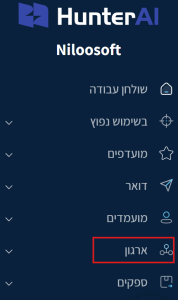
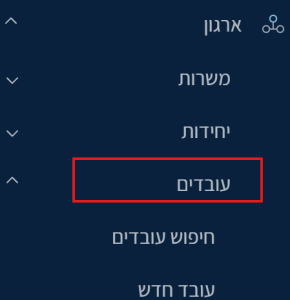
To access the employee card where you’ll add the activity, go to the main menu and select: Organization → Employees → Employee Search
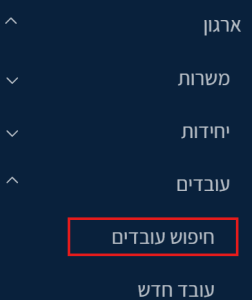
The employee search page will open. Search for the relevant employee by their details (name, department, position, etc.).
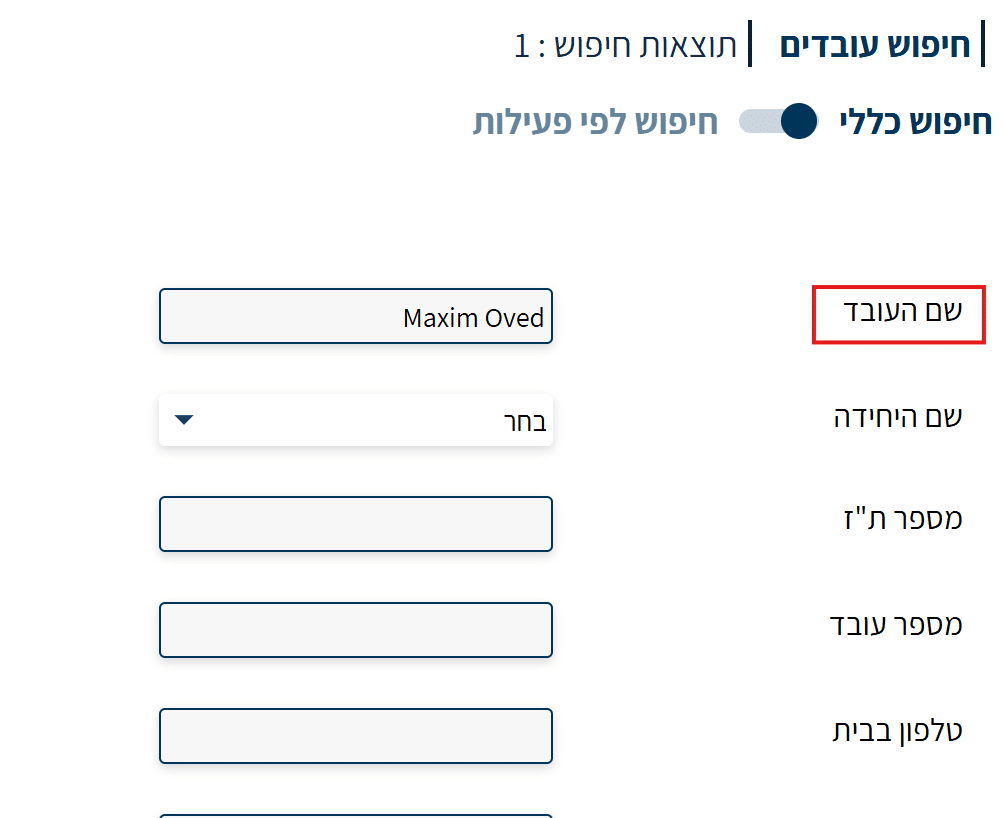
Once the system displays the search results, click on the employee’s name to open their personal card.

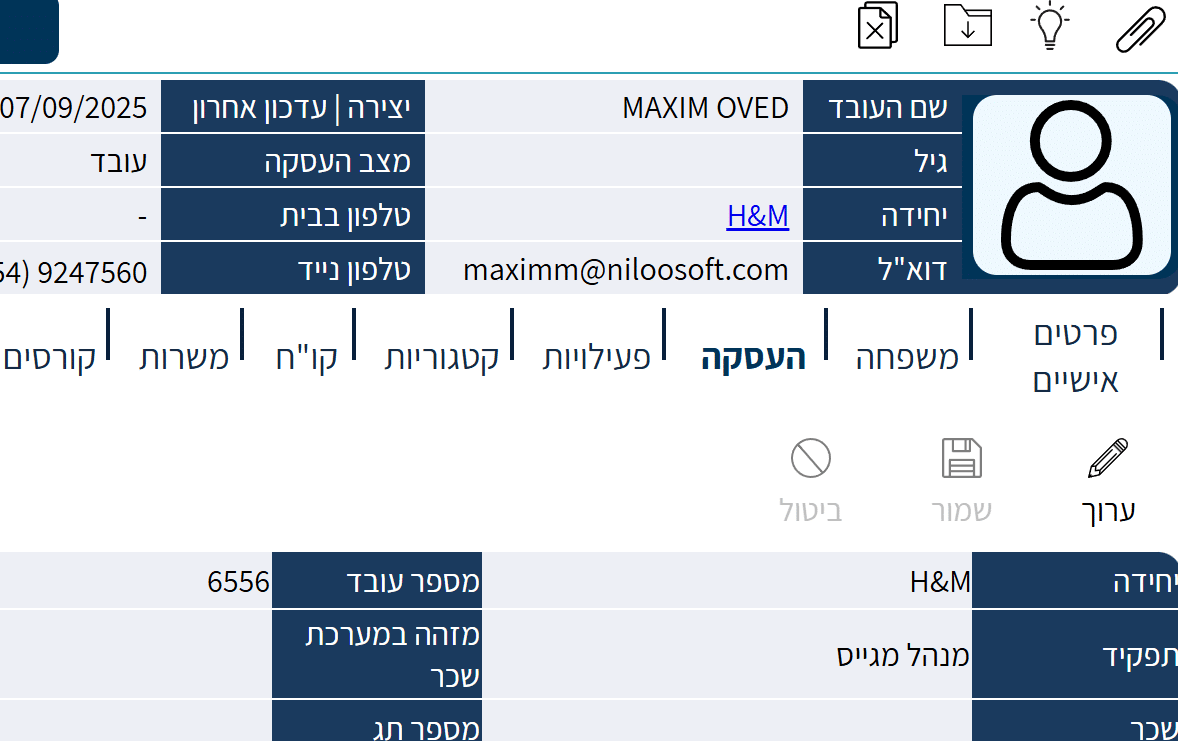
This is what the employee card looks like:
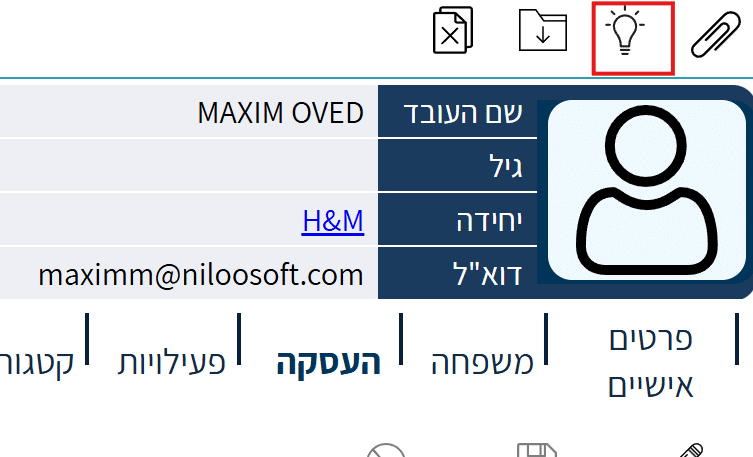
To add an activity, click the lightbulb button that appears above the employee card:
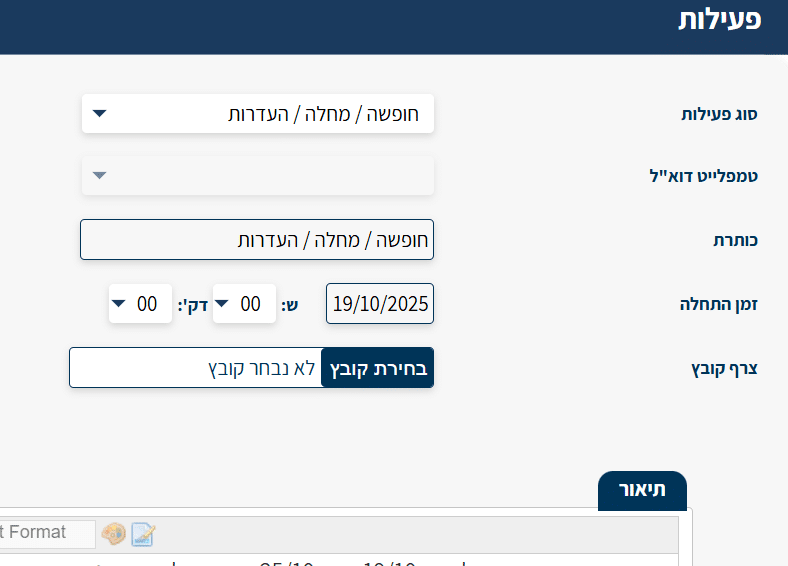
The Add Activity page will now open: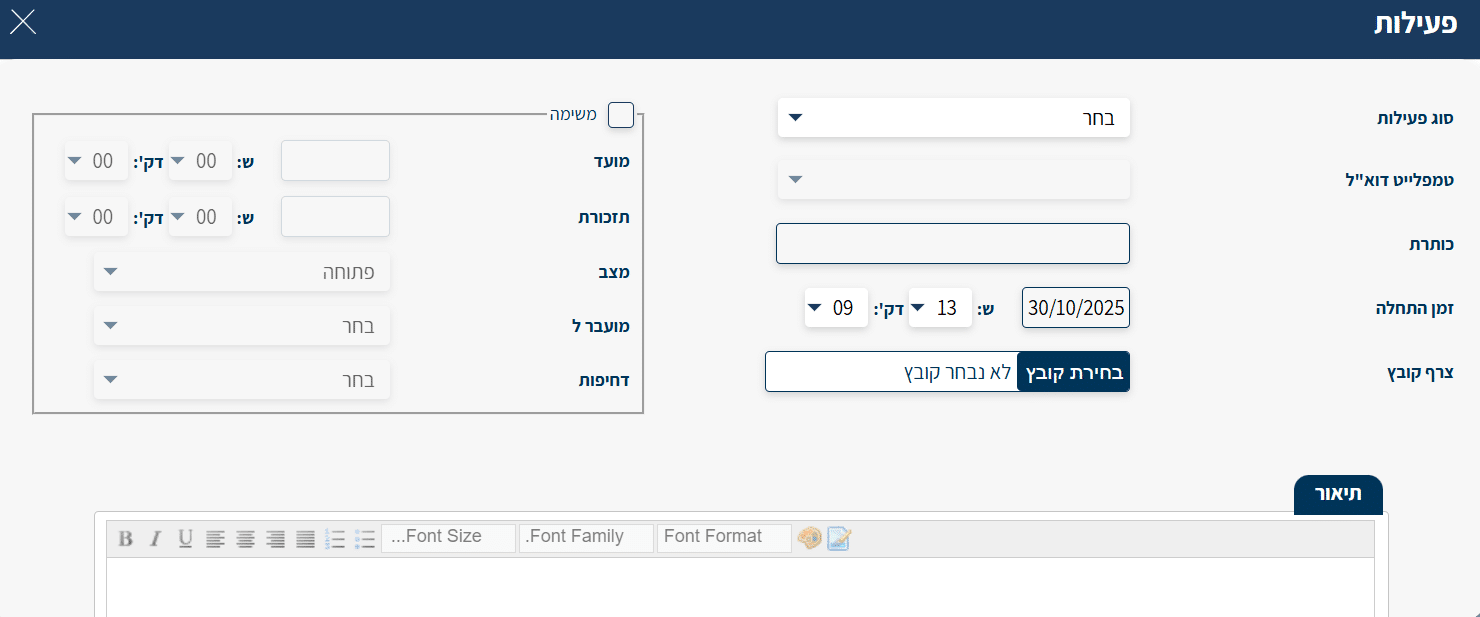
In the window, you can select the desired activity type, for example:
- Work call
- Vacation / Sick leave / Absence
- Personal event (wedding, birth, family event)
- Position or role change
- Professional training / Course / Employee evaluation
(You can add or remove activity types from the list according to your organization’s needs by editing the list)
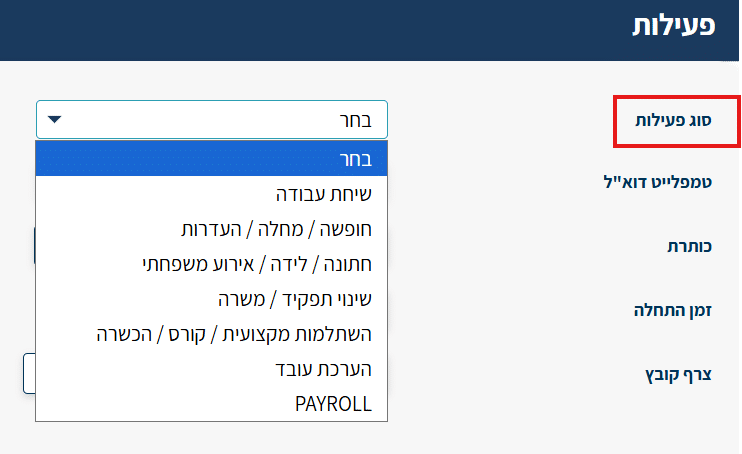
Let’s say in this case it’s a sick leave —
Select the activity type “Sick Leave” and enter the start and end dates. (You can attach a doctor’s note file.)
In the notes field, you can specify additional details — such as the duration of the absence or the reason for the illness.
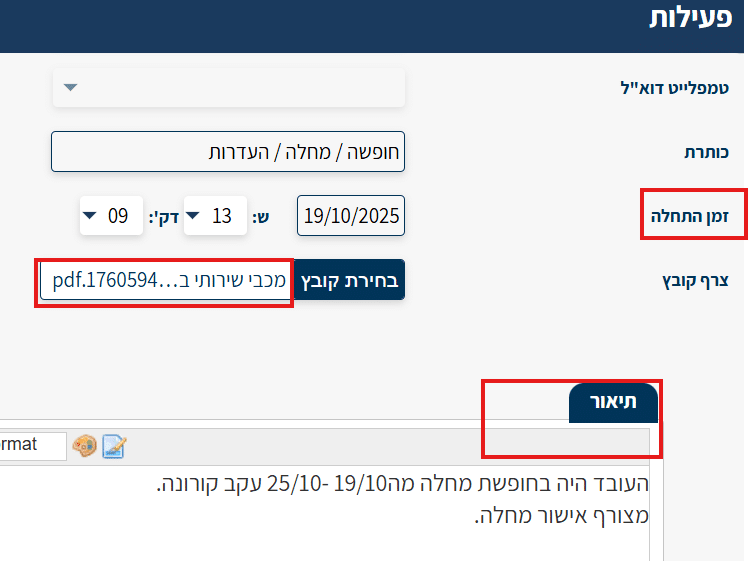
After filling in all the details, click “Add”.
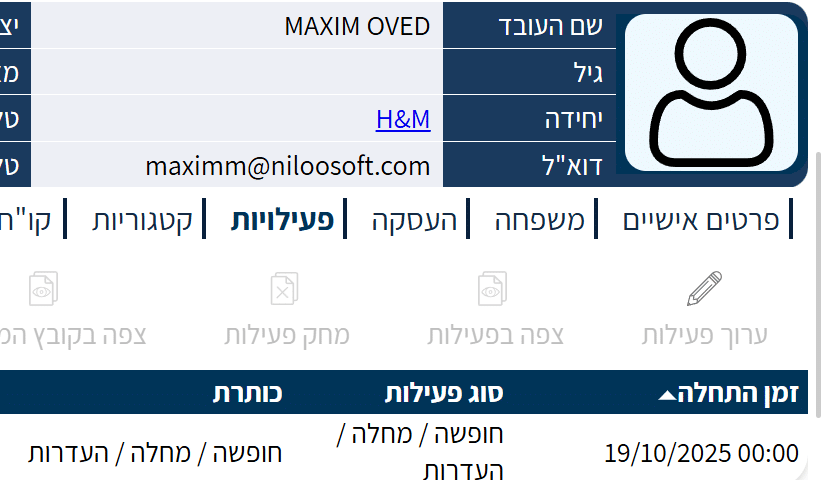
The activity will be automatically added under the “Activities” category in the employee card and will appear in the list alongside previous activities.
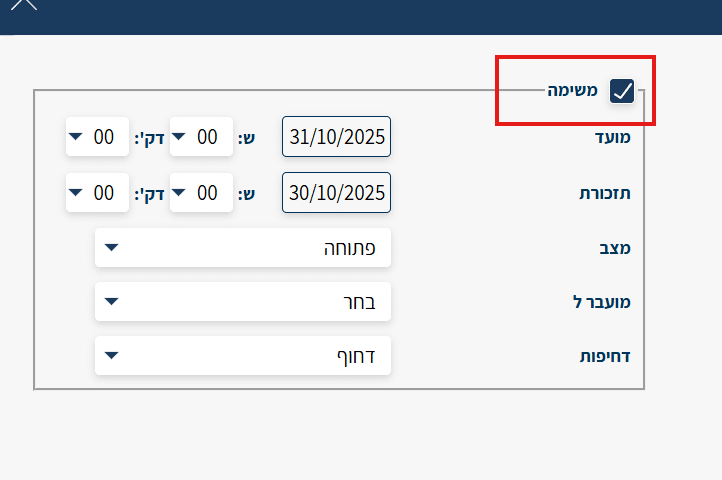
If needed, you can add a task related to the employee’s activity, for example:
In the case of sick leave — if the employee has not yet submitted a doctor’s note, you can create an internal task as a reminder to request it.
- Set the task due date (for example, end of month — for payroll calculation purposes).
- Set when the reminder will appear in the system.
- Specify the task status — Open, In Progress, or Closed.
- Set the urgency level.
This way, you’ll ensure that no important task or follow-up is forgotten, and the information will be stored in an organized and up-to-date manner.
To edit an activity, go to the employee card, click on Activities, and then select the desired activity.
An “Edit Activity” button will appear — click it.
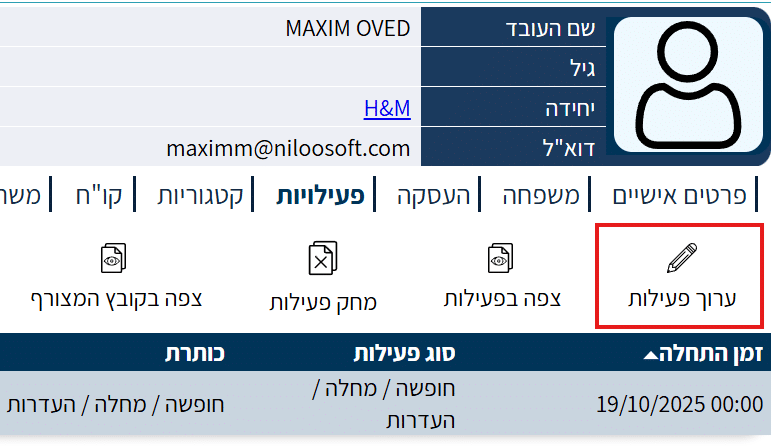
The window will reopen and you can modify the details as needed. Save the updates — and the activity will be updated in the employee card.