


Go to the main menu on the right > Settings > Templates.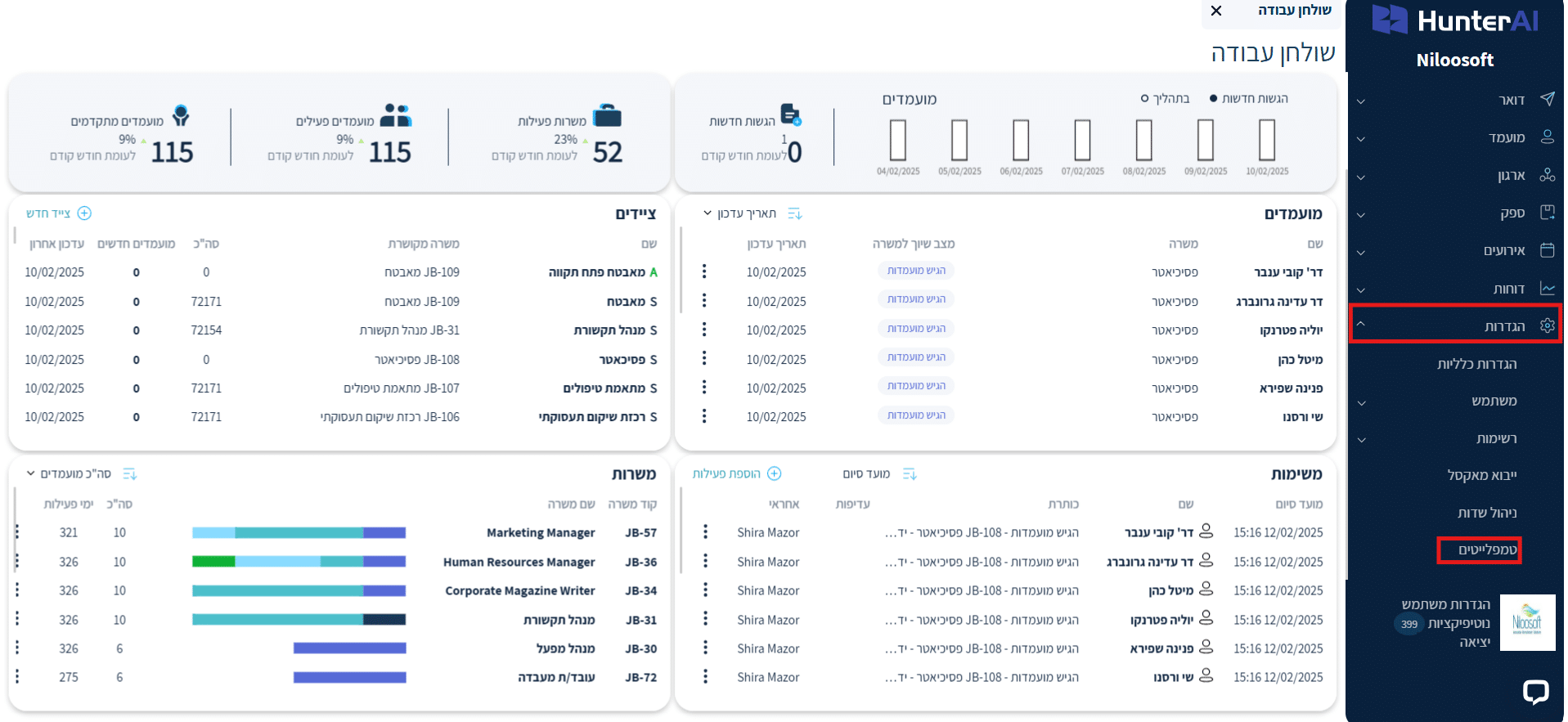
If you don’t see this option, contact your system administrator or technical support.
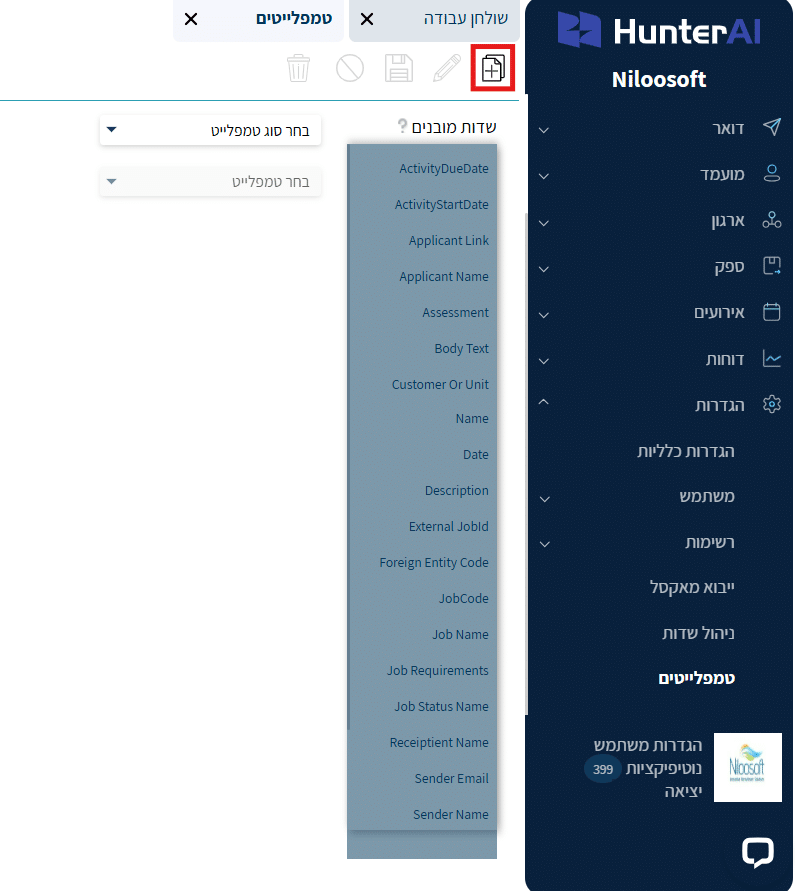
Click the plus button to add a new template The button appears on the right side in the top corner of the screen
Next, select the template type you want to create. Click on the template type selection tab > WhatsApp Message to Candidate
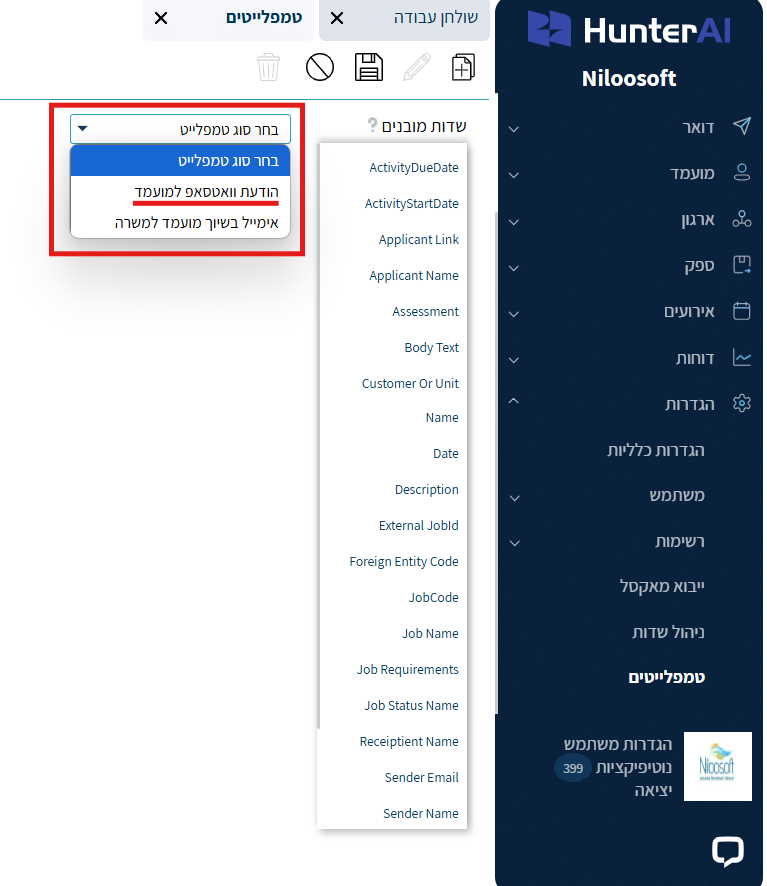
After selecting the template type, you can start building the message you want to send to candidates.
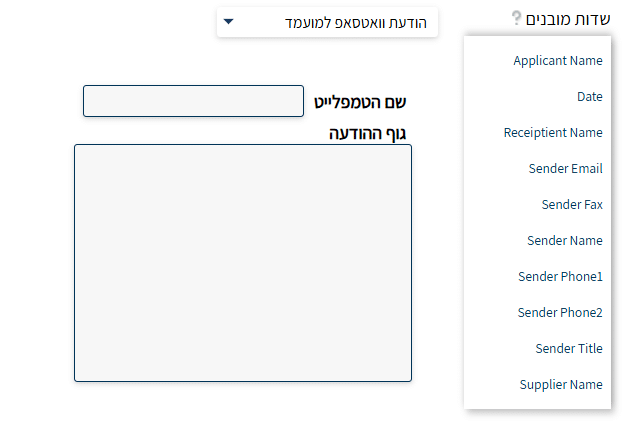
Template Name: Enter a name for internal display only (it will appear in the template list).
Message Body: Write the message text. You can use built-in fields from the system (Bookmarks) on the right side, which will automatically pull data (for example: candidate name, date, sender email, and more) into the message text.
Click on the desired field on the right side to add it — when you click a field it will be copied automatically, and you can paste it into the message body wherever you want.
Additional fields you can add: candidate name, date, recipient name, sender email, fax, sender name, phone numbers, and position.
Save: Click the diskette icon to save the template.
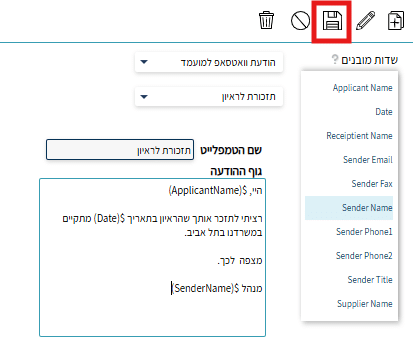
You can also edit existing templates. To do so, select the desired template from the templates you have created.
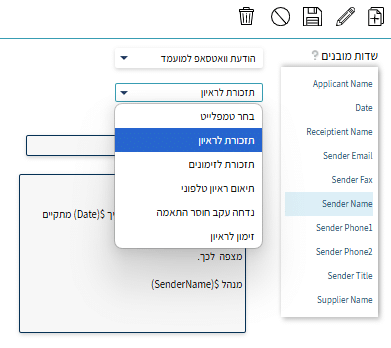
Click the pencil icon to edit.
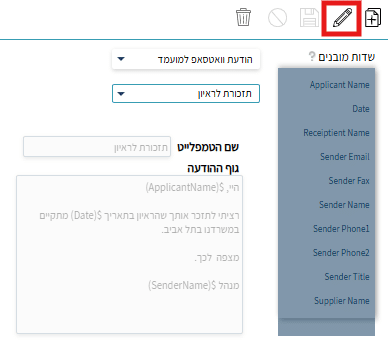
When done, click the diskette icon to save.
To cancel the edit, click the icon 
To delete the template, click the trash icon 
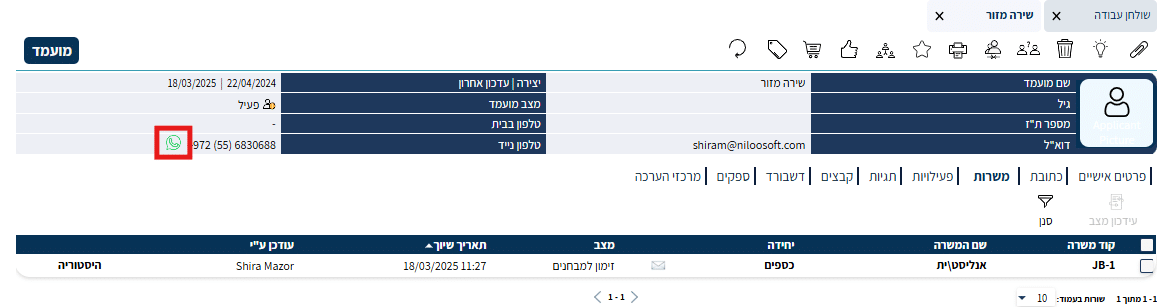
To send a WhatsApp message to a candidate, go to the candidate card you want to send the message to, then click the WhatsApp icon on the candidate card that appears next to the candidate’s mobile number.
Image for illustration —
There is another way to send a candidate a WhatsApp message — through the ‘Candidate Hunter’ (a separate guide will detail candidate search in the Hunter).
Important — sending via the Candidate Hunter is only possible on an individual basis per candidate; bulk sending via WhatsApp is not available.
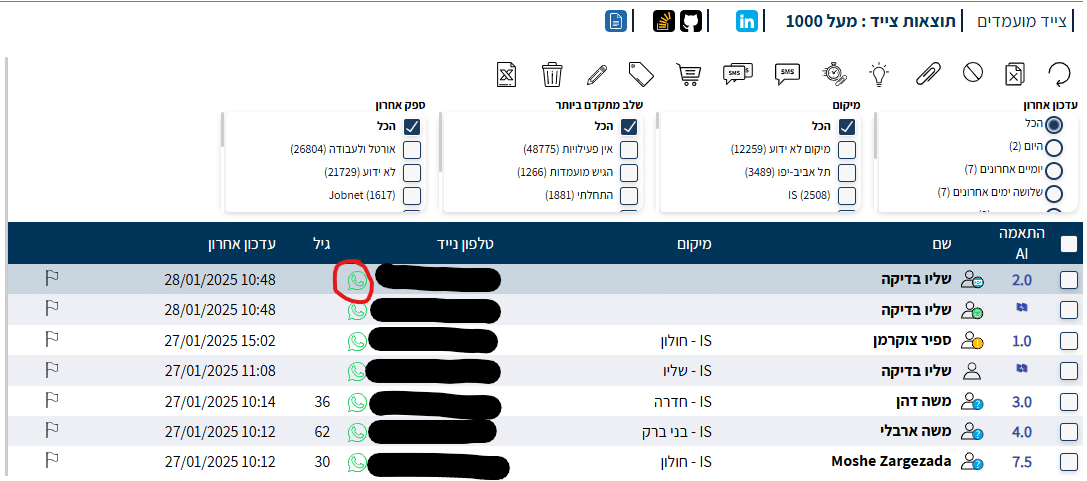
Sending steps in practice —
A sending window will open for you, where you can select a template from the list or fill in a message manually.
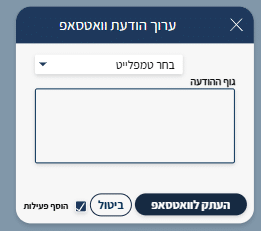
Select a template from the list — it will appear in the message body exactly as you drafted it.
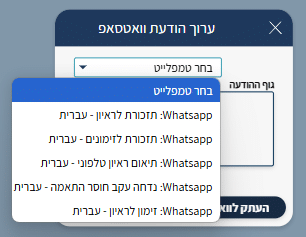
When you select the desired message, it will be copied automatically and will pull the relevant details from the system fields — you can then edit the message before sending (for example, to add a time and date).
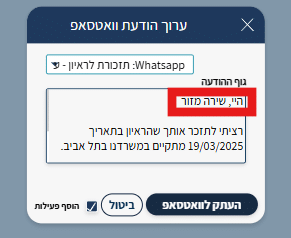
Click ‘Copy to WhatsApp’ to open WhatsApp and send the message.
Niloosoft provides only the outbound link! The WhatsApp connection itself must be set up independently via WhatsApp Web.
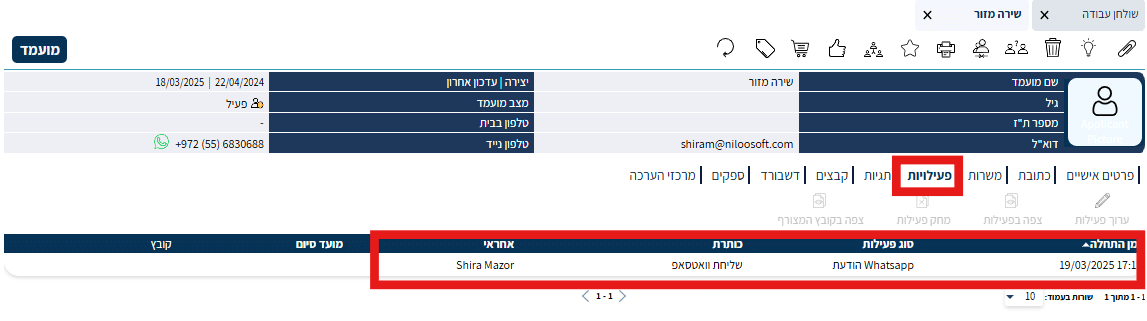
Automatic message logging in the system — by checking the checkbox V in ‘Add Activity’
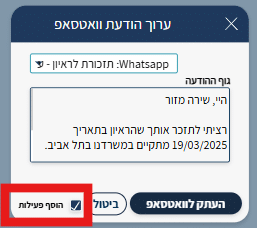
This way, all the text in the message body will be logged after clicking “Copy to WhatsApp” within the candidate card in the Activities column.