

How to Clear Your Browser Cache?

The Cache is a temporary storage area where the browser saves files such as images that were previously loaded. The purpose of the cache is to speed up website loading and ensure the browser operates quickly and efficiently.

When we perform our monthly upgrade to the recruitment system and add new features or bug fixes, it is especially important to clear the cache. Without clearing it, the browser may continue to use older versions of files, which can prevent the system from running with all the latest updates and improvements.

Benefits of Clearing the Cache After Version Upgrades:

1. Improved Performance: Clearing the cache ensures the system works with all updated features and loads smoothly and quickly.

2. Support for New Versions: After system upgrades, clearing the cache ensures the browser loads the most up-to-date files and does not rely on older versions.

3. Smooth User Experience: This action helps prevent display and operational issues, and improves your experience using our recruitment system.

How to Clear the Cache in Different Browsers?

1. Quick Clear (via Keyboard) in Chrome:

  • On a desktop computer: Press F12.
  • On a laptop: Press FN + F12 (the FN key is located next to the Windows key).
Then:

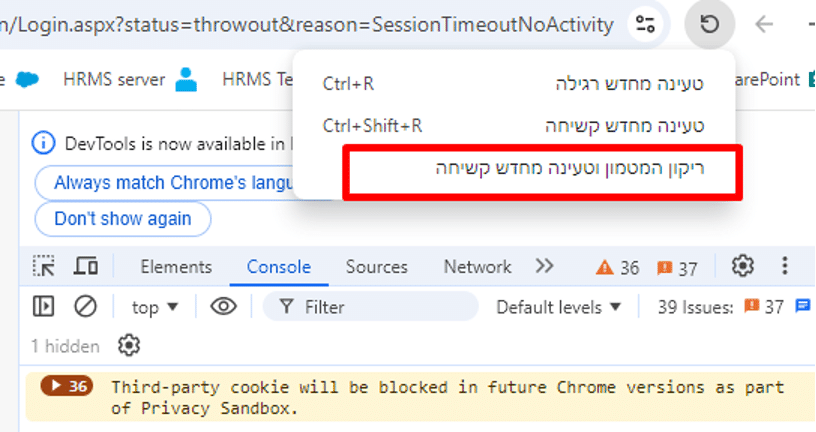
  • Right-click on the Refresh button and select:
    “Empty Cache and Hard Refresh”.
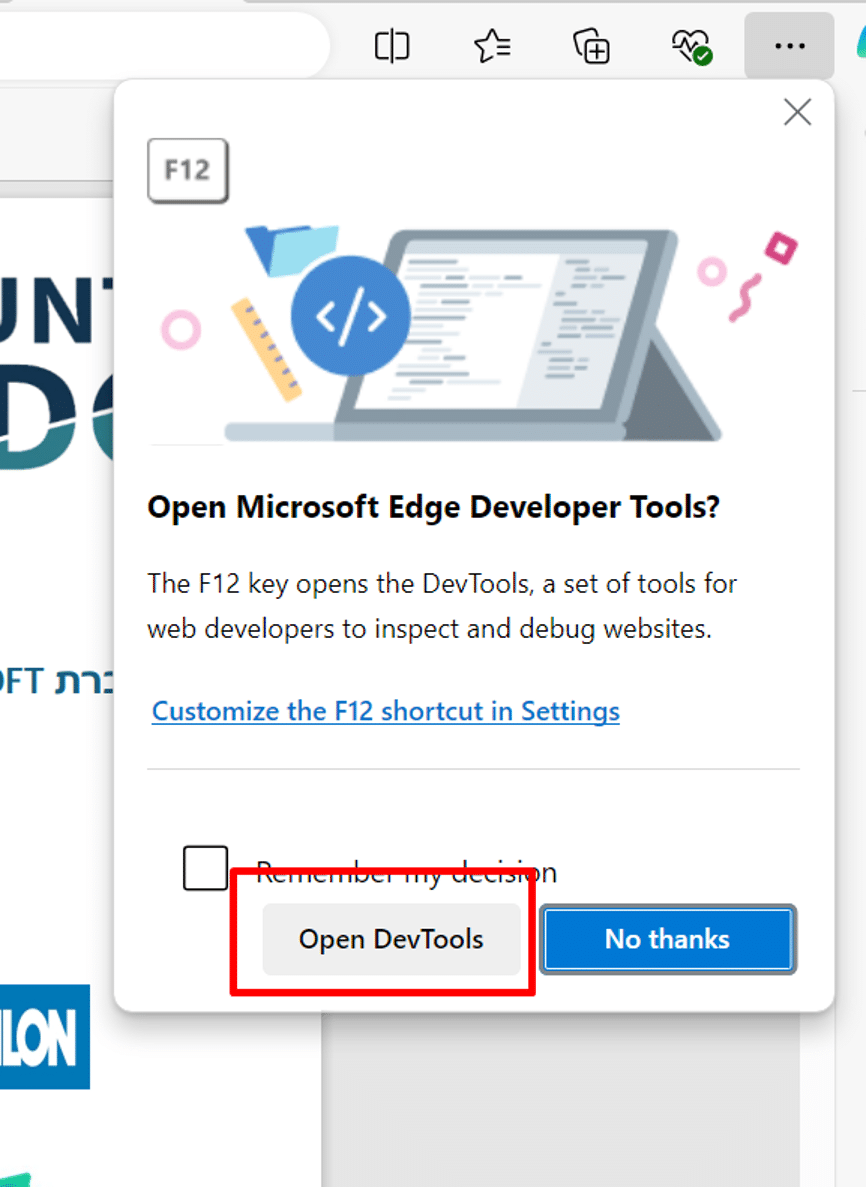
2. Quick Clear (via Keyboard) in Microsoft Edge:

After pressing F12, the following window will open — click “Open Dev Tools”
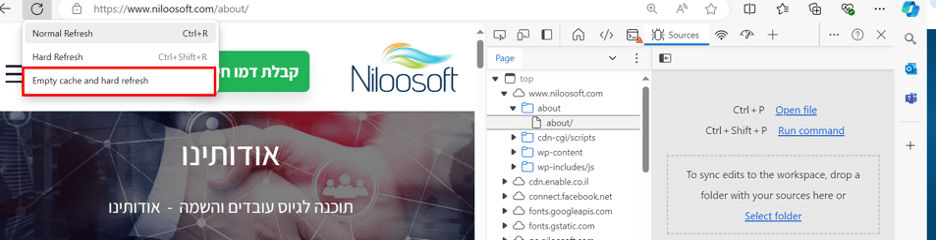
Then, just like in Chrome, right-click on the Refresh button and select “Empty Cache and Hard Refresh”
2. Clearing Cache in Google Chrome:

1. Click the three-dot menu in the upper corner of the browser.

2. Select “Settings”.
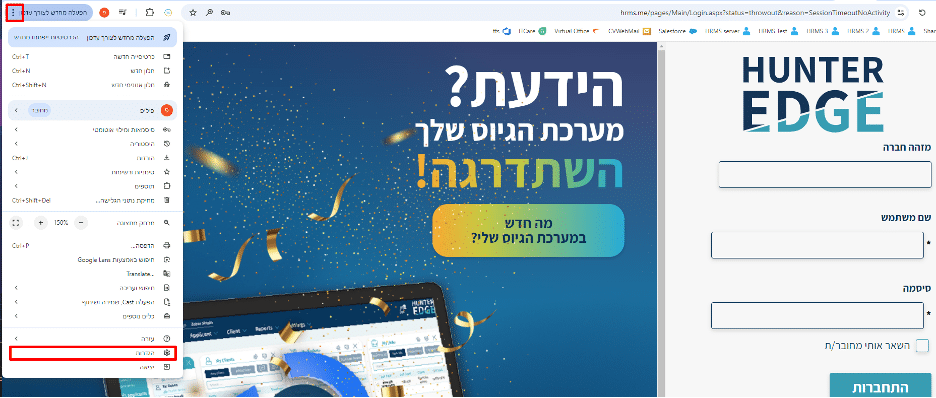
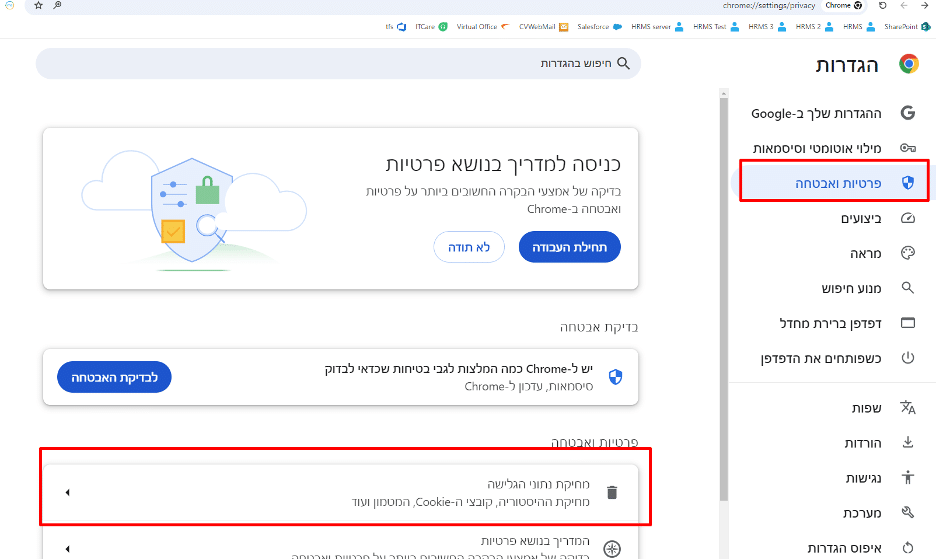
3. Go to the “Privacy and Security” category and click “Clear Browsing Data”.
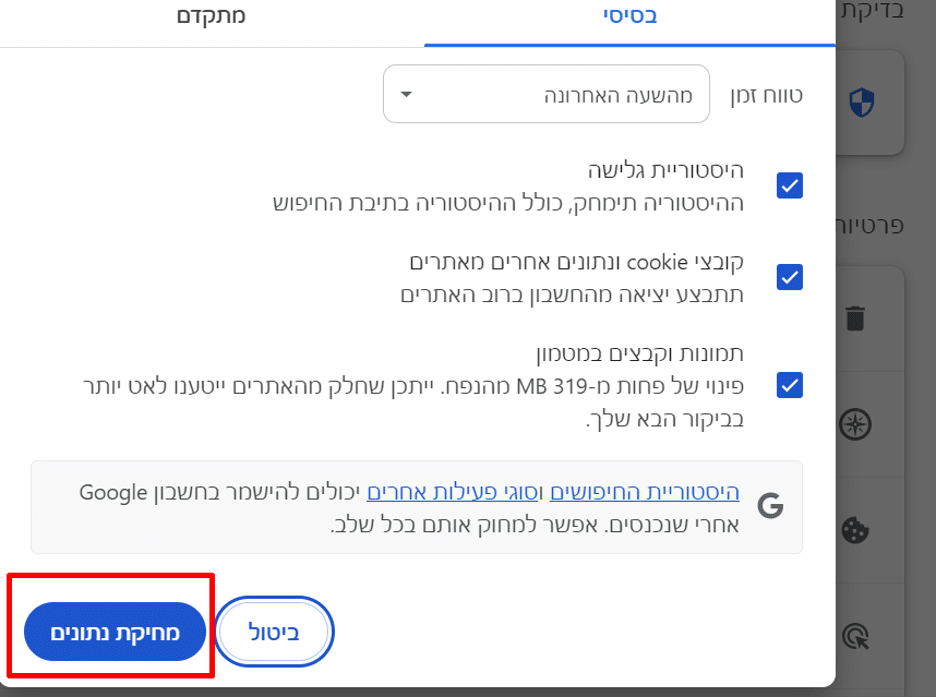
4. Check the data you want to clear and click “Clear Data”.
Tip: If you want to keep your browsing history, make sure the “History” option is not checked.
3. Clearing Cache in Microsoft Edge:

1. Open the Microsoft Edge browser.

2. Click the three-dot menu in the upper corner.
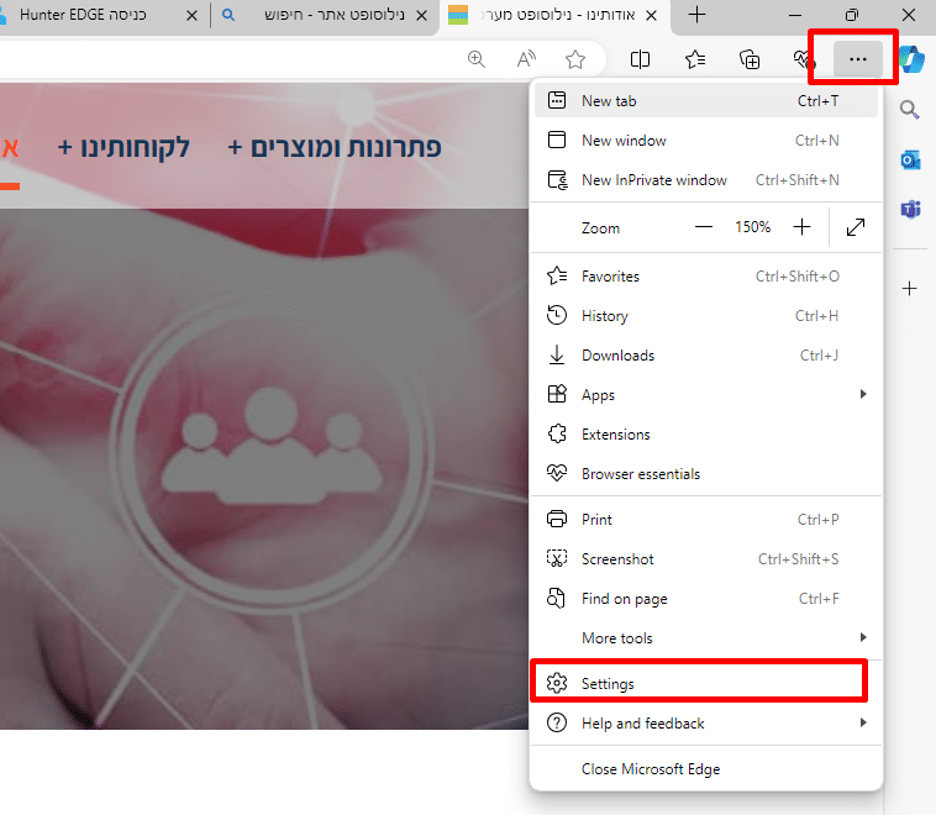
3. Select “Privacy, Search, and Services”.

4. Scroll down and click “Clear Browsing Data”.
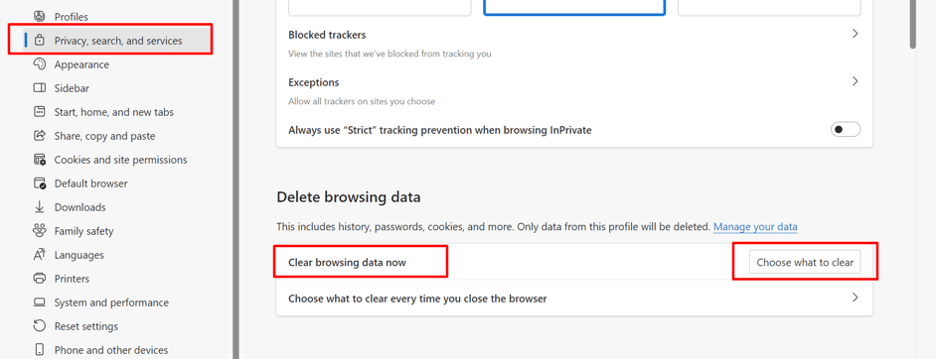
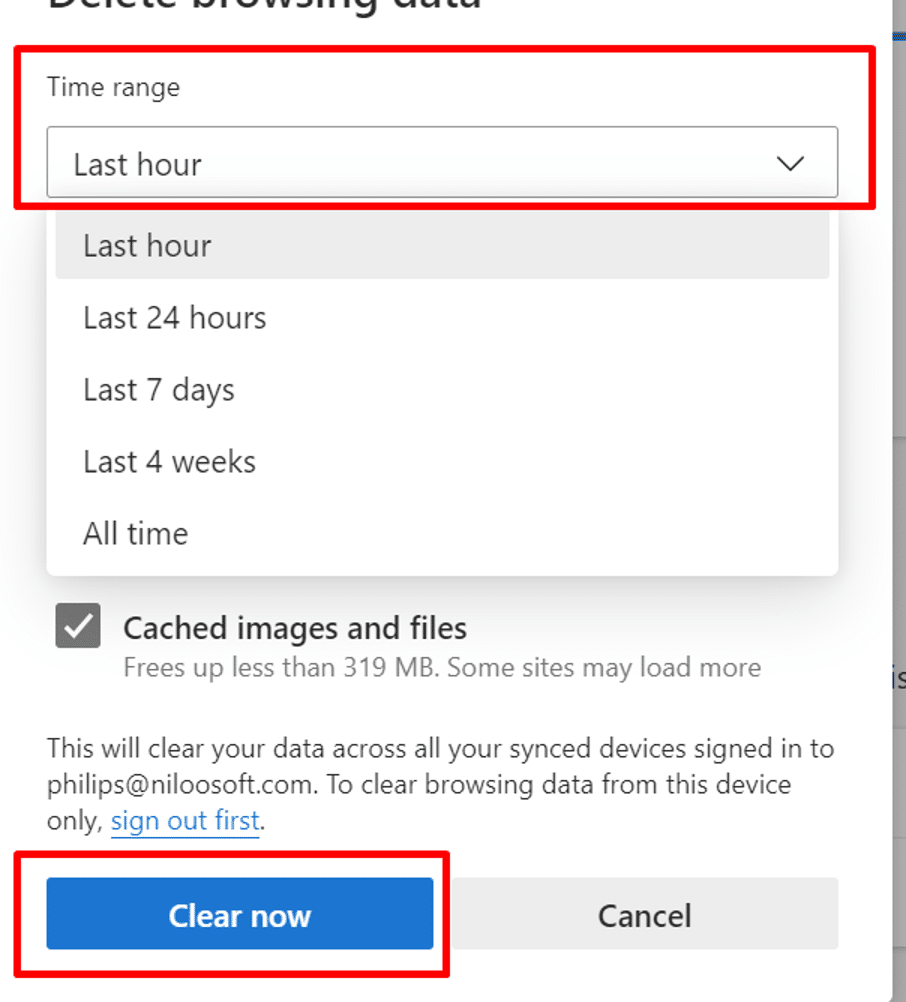
5. Click “Choose What to Clear” and select the types of data you want to clear.

6. Select the time range and click “Clear”.
Important Note:

Clearing the cache does not delete important information, such as usernames and passwords. It is a simple and safe action that ensures the system runs with the latest versions and updates.

Summary:

Clearing the cache after version upgrades is an essential step for improving system performance and ensuring smooth operation with all the latest improvements. We recommend doing this after every upgrade to ensure the system operates optimally and provides you with the best user experience.

If you have any questions, you can contact our support team via the chat in the system or by email: [email protected]

Picture of Niloosoft Ltd.            Ask ChatGPT

Niloosoft Ltd. Ask ChatGPT

Niloosoft is a leading provider of an advanced system for managing and tracking the employee recruitment and human resources process.


Niloosoft offers its clients solutions in the fields of human resources management, recruitment process management, and customer relationship management (CRM). Our solutions are suitable for freelancers as well as HR departments in companies that recruit personnel for their own needs and manage the recruitment process with the organization’s managers through a single platform.

נילוסופט מובילה את מהפכת גיוס העובדים עם המערכת המתקדמת בעולם לניהול תהליך גיוס עובדים ומשאבי אנוש

השאירו פרטים ונדבר