


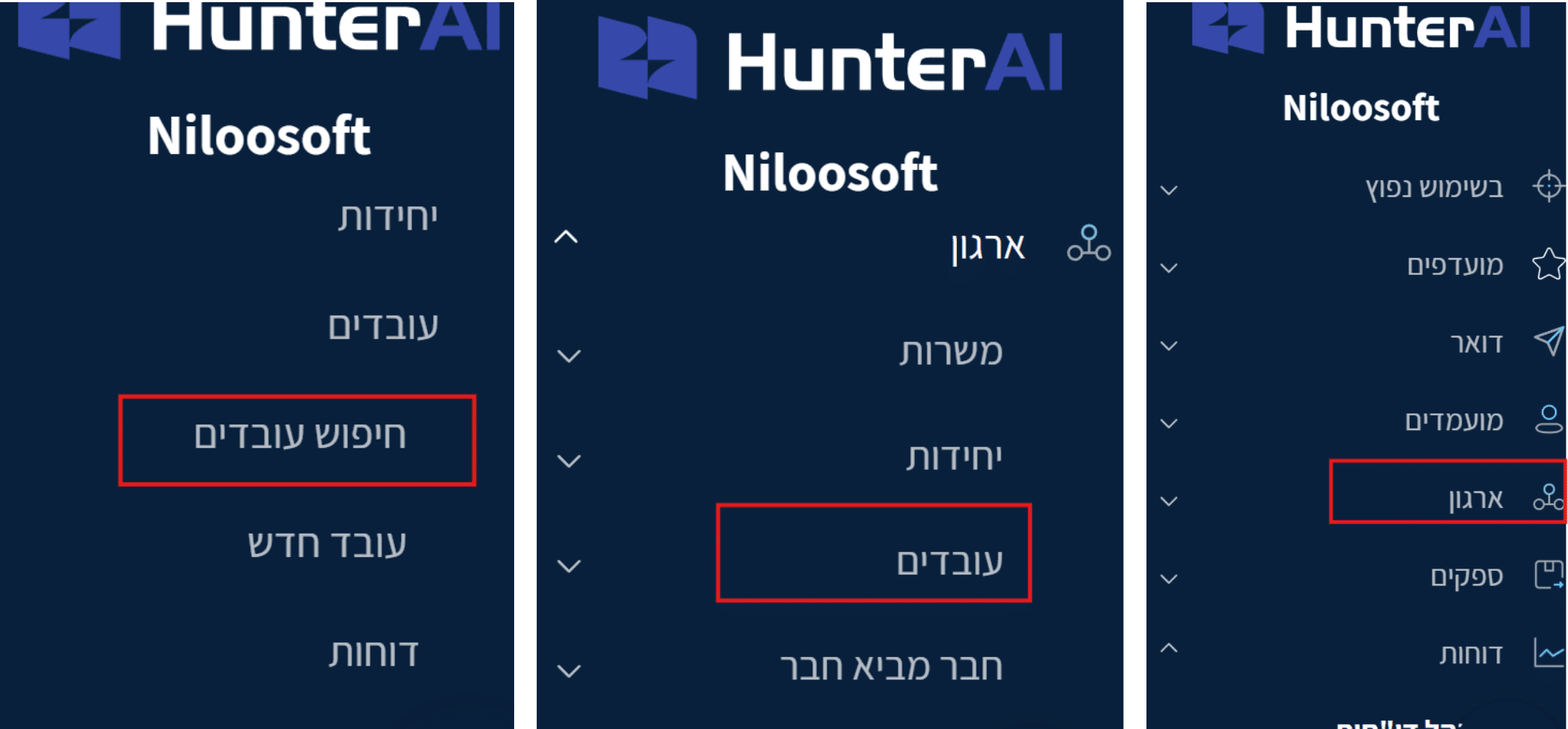
First, go to the desired employee card — in the main menu, select: Organization → Employees → Search Employees
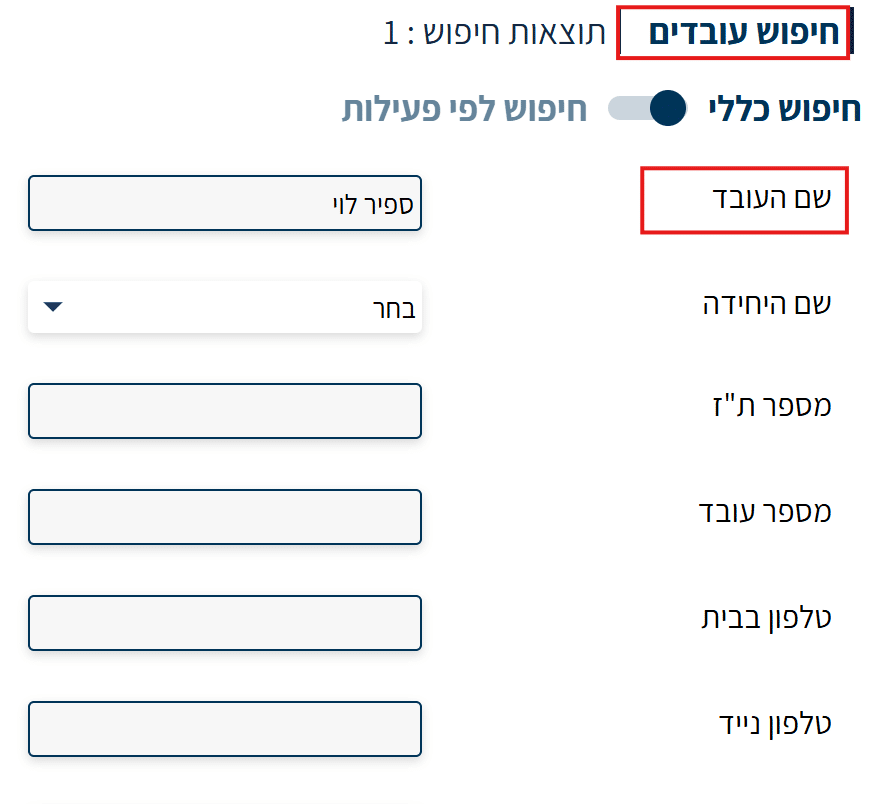
In the search screen that opens, search for the desired employee.
For example: type “Sapir Levi”.
You can also search using additional filters such as: unit name, ID number, employee number, mobile phone, email, and more…
After performing the search, a list of employees matching the criteria will be displayed.
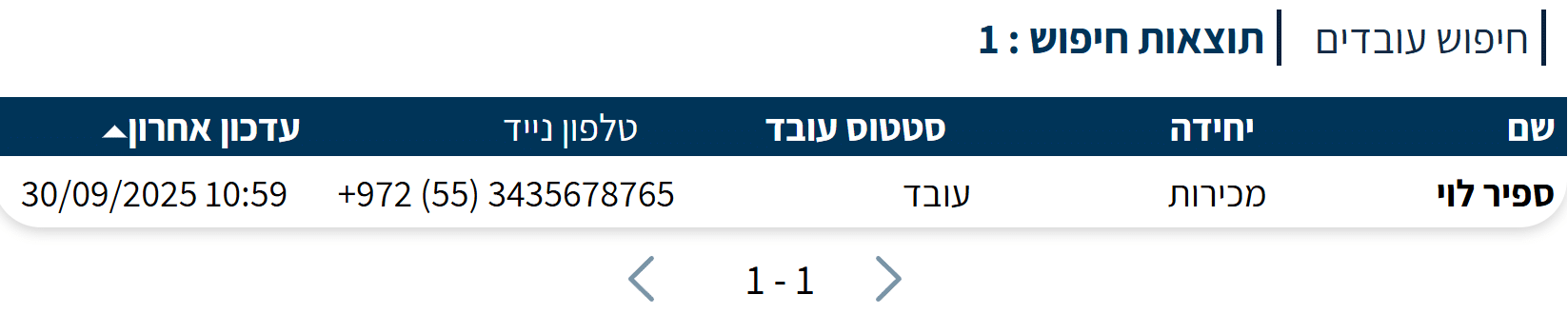
Select the relevant employee and open their personal card.
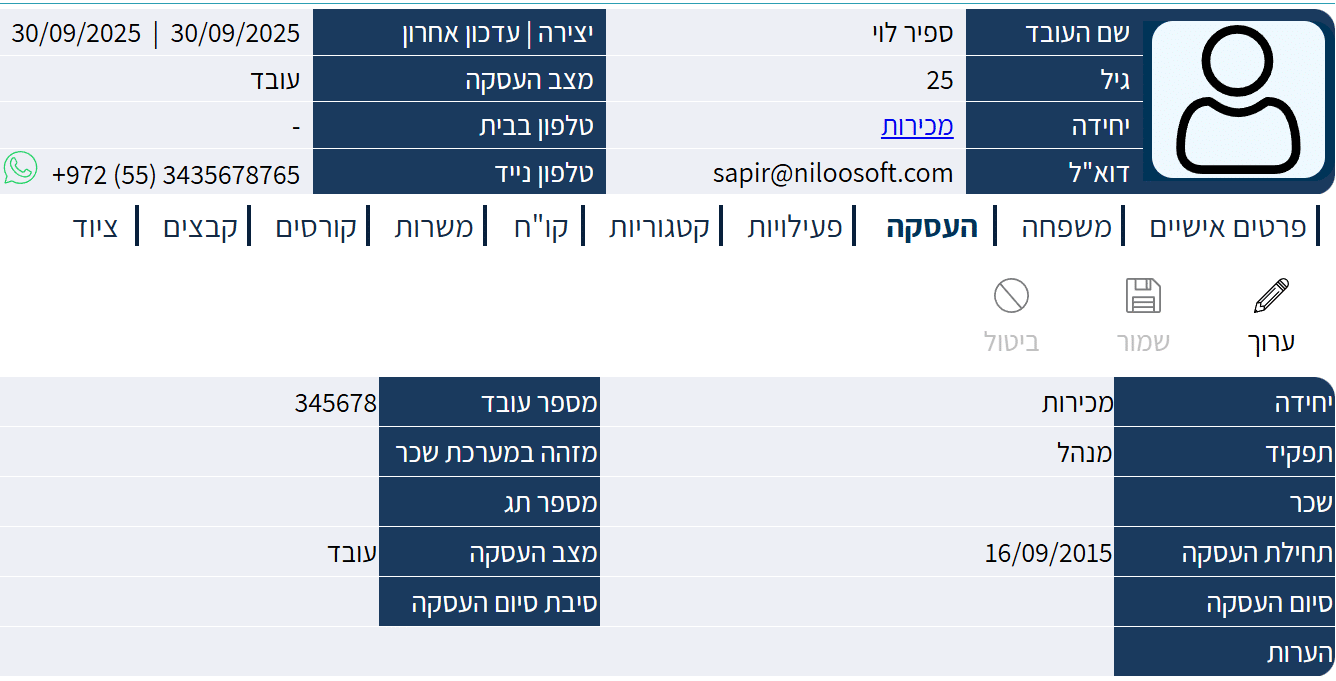
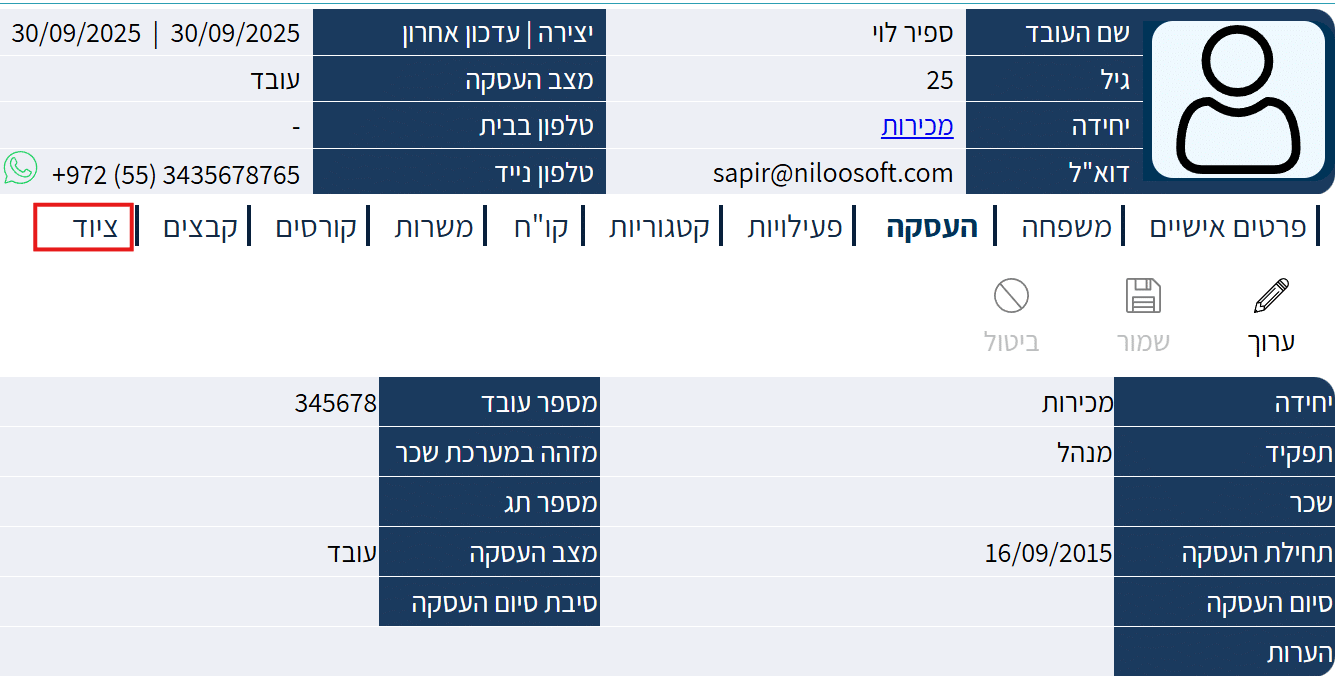
In the employee card, click on the “Equipment” tab.
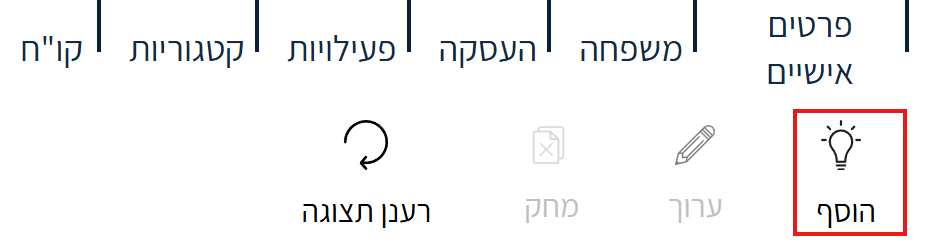
Select the “Add Equipment” option — a new window will open for entering equipment details.
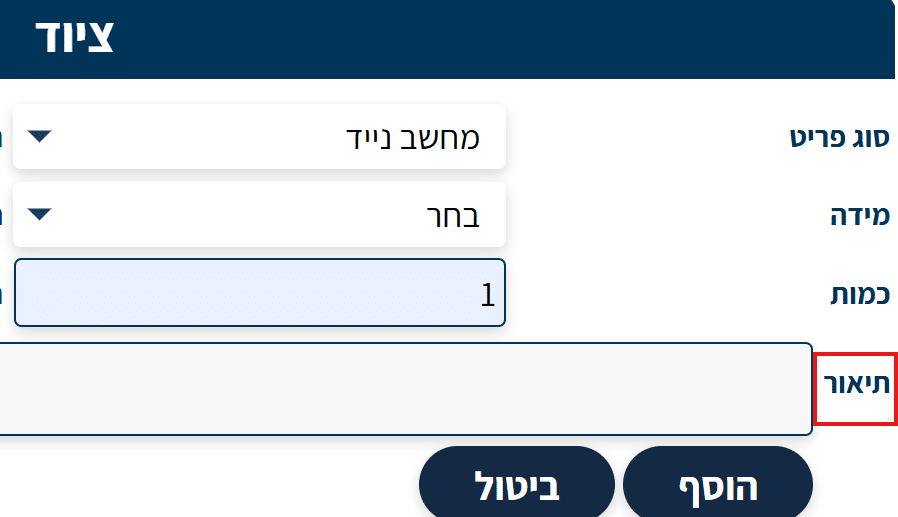
After clicking the Add button, the equipment addition page will open, which looks like this:
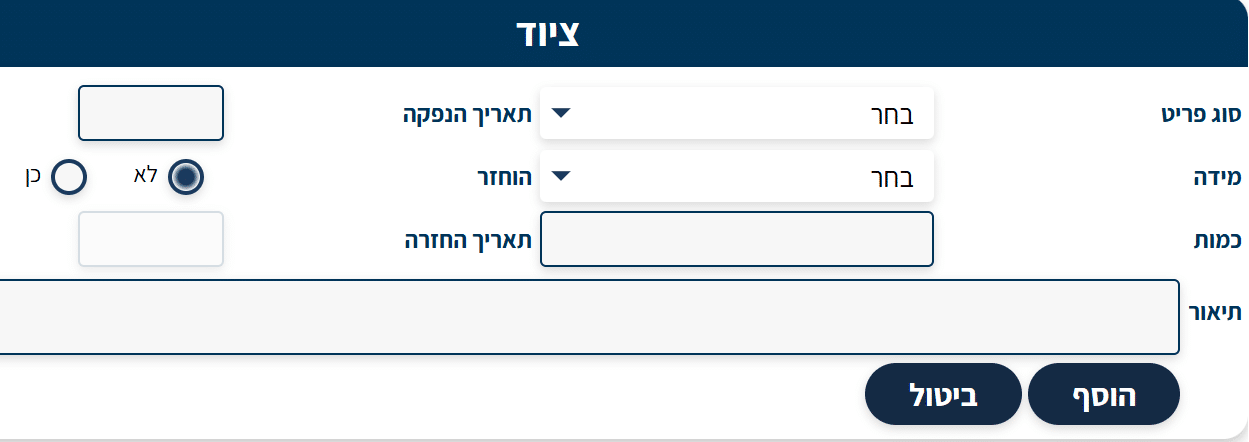
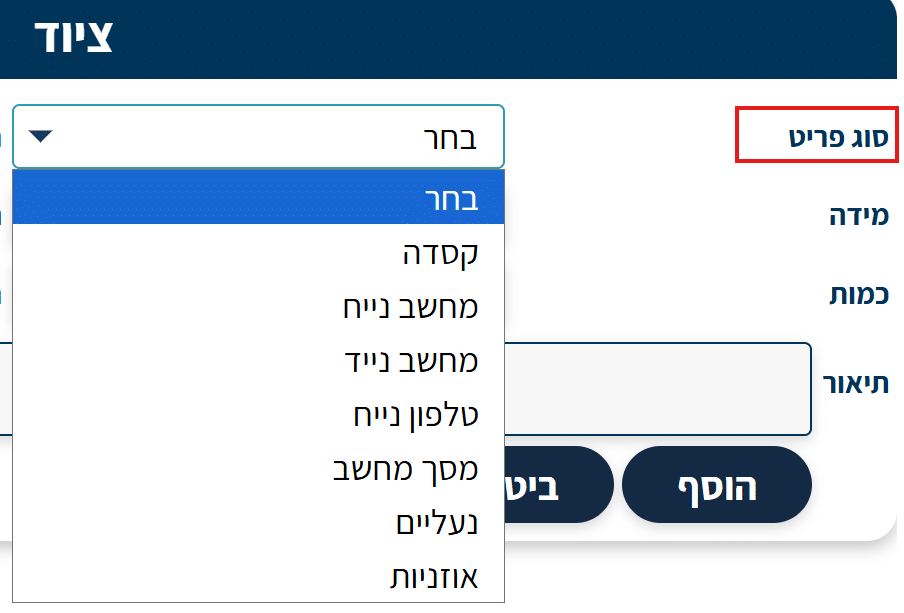
Enter the type of item provided to the employee as part of their work, for example: Laptop
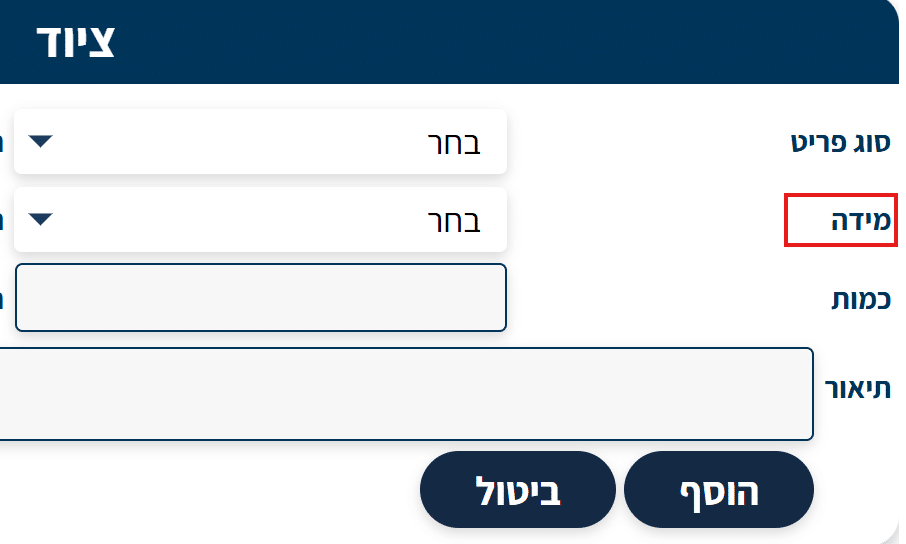
If the item is a clothing item, enter the size of the item.
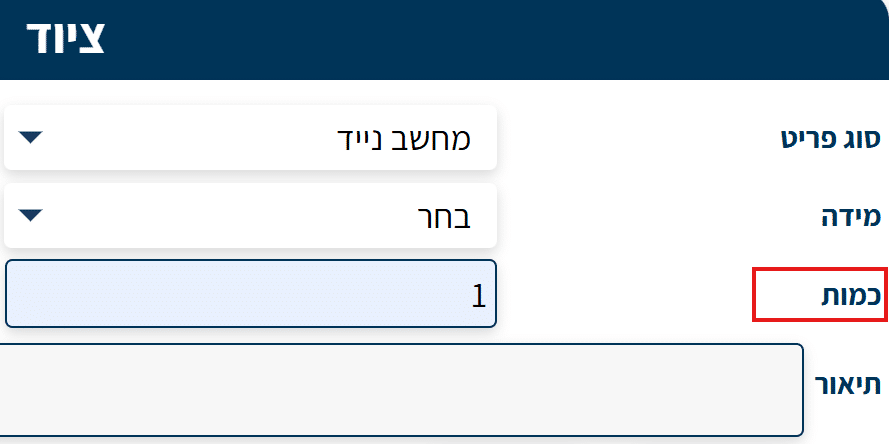
Now enter the quantity of items of this type given to the employee (for example, in our case the employee received only 1 laptop).
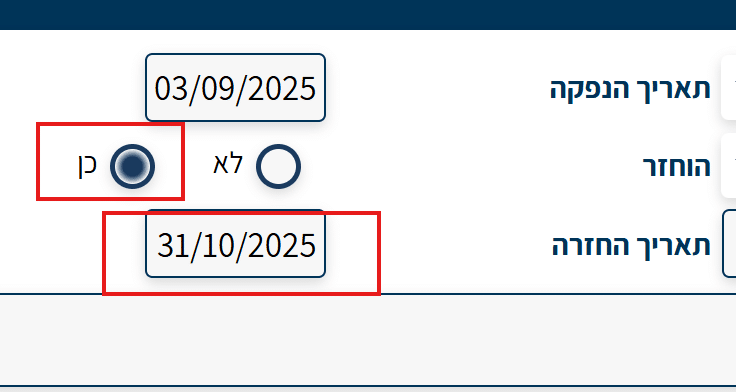
Now enter the date the item was issued to the employee.
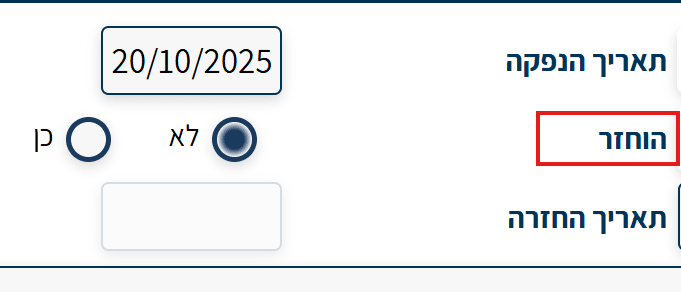
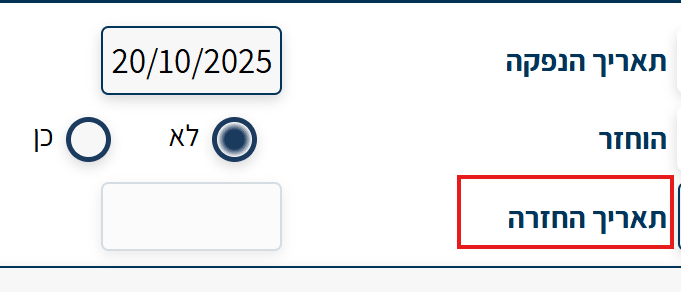
Then enter the return date (usually the employee’s last day at the company, unless it’s a temporary loan).
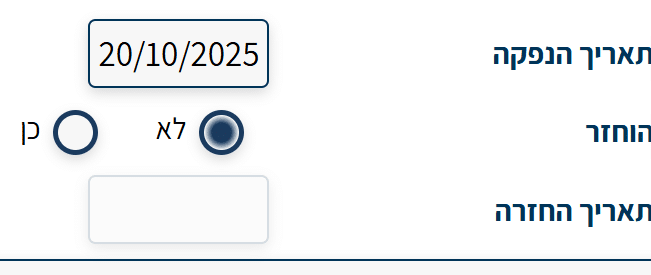
Then indicate whether the item was returned or not at the end of use.
You also have the option to provide additional details about the item issuance in the description box:
Finally, click Add.
The employee’s equipment has now been successfully added!

If you need to edit an employee’s existing equipment (for example: the employee has finished their employment and returned the laptop they received), you can edit the item as follows:
Click on the desired item and then click the “Edit” button:
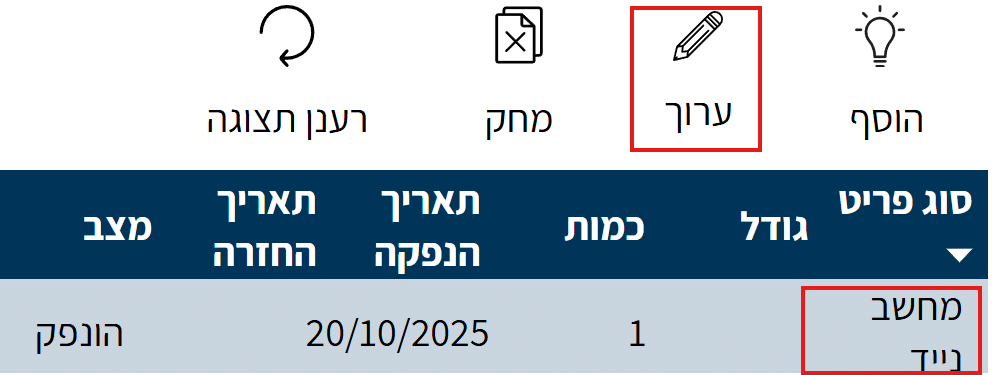
The equipment page you selected will open again, and you can enter the desired changes (in our case, the employee returned the equipment on their last day of work):