
How to Add and Update an Employee’s Family in the Personal Employee File in Hunter HR?

How to Add and Update an Employee's Family in the Personal Employee File in Hunter HR?

Through Hunter HR's employee file management, you can manage relevant and up-to-date information about each employee's family members.

The information is saved as part of the employee card and supports operational processes, employee welfare, emergency response, and other organizational needs.
This module is an integral part of the employee file management system — alongside document management, courses, equipment, and more.

Before you begin, make sure you have opened the relevant employee card.
For details on searching for employees and navigating to their card, click here .

1. Accessing the Family Tab

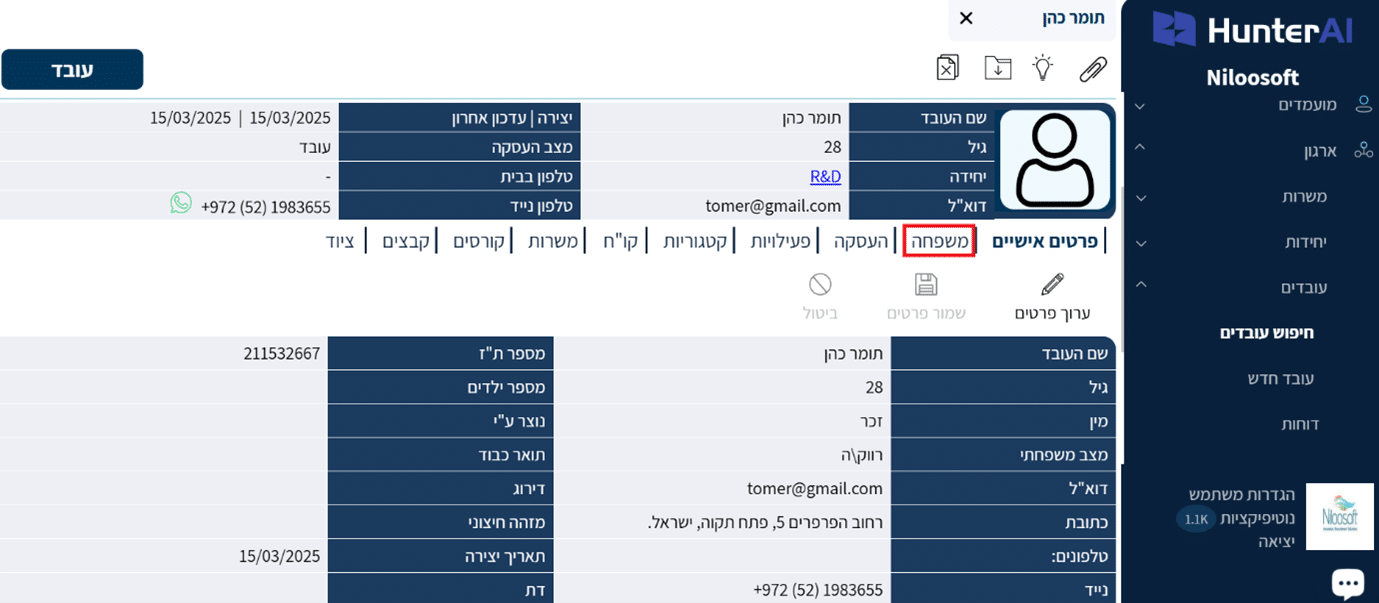
In the employee card, click the Family tab, located at the top of the employee card.
Clicking the tab opens the employee’s family management screen.
2. Adding a Family Member

After clicking the “Family” tab, the dedicated panel for displaying the employee’s family members opens. In this case, you can see that no family members have been added for this employee yet.
To start the adding process, click the Add icon — located in the top corner of the screen (next to the other action tools).

A family member entry form will then open, where you fill in the relevant details:

  • Full name
  • ID number
  • Email
  • Phone


 In this example, a partner named Daniel Levi has been added with their identifying details.
Once you have finished entering the family member’s details, click Add.

3. Setting an Emergency Contact

The add screen includes a dedicated section for setting an Emergency Contact.
You can mark whether the family member you entered serves as an emergency contact for the employee.
This setting is useful in situations where quick access to contact details is needed during an operational or medical emergency.

Once you have entered the family member’s details, the information will appear under the employee card in an organized and clear format. You can view all added family members directly from the employee card, with the option to continue adding more family members as needed — all in one place for your convenience.

4. Editing Family Member Details

If you need to update or edit details for an existing family member,
select the relevant row from the family member list, and mark the row you want to edit.
Click the pencil icon — this allows you to update the personal details.
Edit the desired fields, including phone, email, address, date of birth, and more.
When done, click “Save” and the information will be updated in the system immediately.


Summary

The family management section in Hunter HR — an employee file management system — lets you save important personal information as an inseparable part of the employee file.
Using a simple entry form, you can add or update family members — including marking an emergency contact — all in one place for maximum convenience.
Keeping information up to date supports professional organizational management, employee welfare, and operational support when needed.


.

Picture of Niloosoft Ltd.            Ask ChatGPT

Niloosoft Ltd. Ask ChatGPT

Niloosoft is a leading provider of an advanced system for managing and tracking the employee recruitment and human resources process.


Niloosoft offers its clients solutions in the fields of human resources management, recruitment process management, and customer relationship management (CRM). Our solutions are suitable for freelancers as well as HR departments in companies that recruit personnel for their own needs and manage the recruitment process with the organization’s managers through a single platform.

נילוסופט מובילה את מהפכת גיוס העובדים עם המערכת המתקדמת בעולם לניהול תהליך גיוס עובדים ומשאבי אנוש

השאירו פרטים ונדבר